
ICTContact Reports Guide
ICTContact has six report modules under the Reports menu. Each serves a different purpose — from raw call data to live agent monitoring. Here’s how to use each one.
1. CDR — Call Detail Records
Navigate to Reports > CDR to access individual call records.
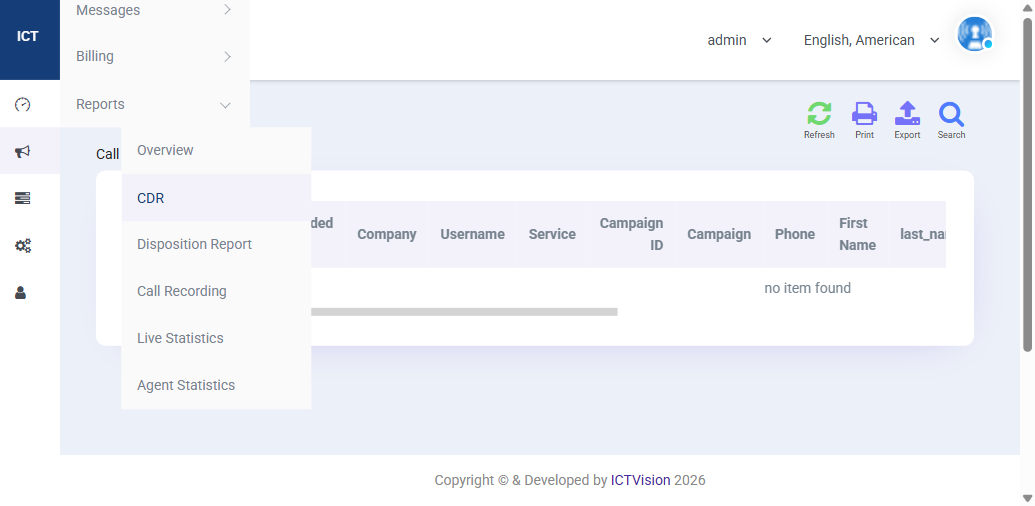
The CDR report shows every call with the following columns:
- Company / Username — which account the call belongs to
- Service — campaign type (voice, SMS, fax, email)
- Campaign ID & Campaign name — which campaign triggered the call
- Phone — destination number
- First Name / Last Name — contact details if matched
How to filter CDR records
- Click the Search icon (top right)
- Enter date range, campaign name, phone number, or disposition
- Click Search to filter results
How to export CDR data
Click the Export button (top right) to download results as a CSV file. Use this for billing reconciliation, compliance audits, or custom reporting in Excel.
2. Live Statistics
Navigate to Reports > Live Statistics to see agents in real time.
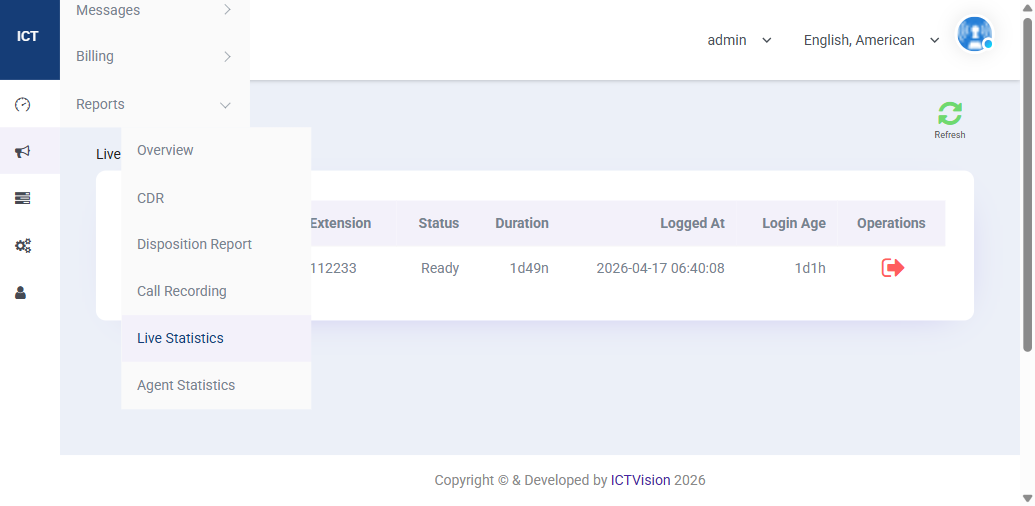
Each row shows one agent with:
- Extension — agent’s SIP extension number
- Status — Ready, On Call, On Break, or Offline
- Duration — how long they’ve been in the current status
- Logged At — when they logged in
- Login Age — total session length
- Operations — force-logout button if needed
Click Refresh to update the view. This page auto-refreshes every 30 seconds.
3. Agent Statistics
Navigate to Reports > Agent Statistics for historical agent performance data.
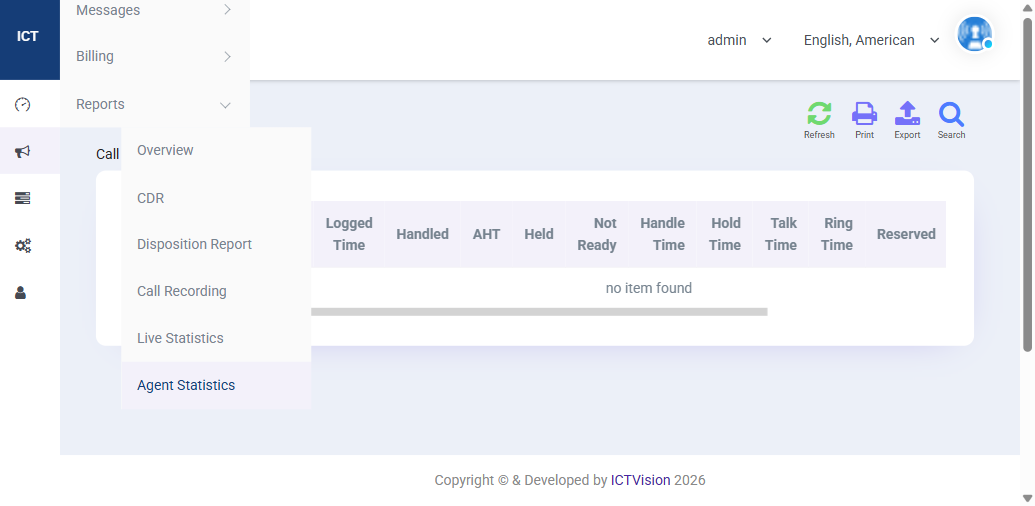
Key columns explained:
| Column | Meaning |
|---|---|
| Logged Time | Total time the agent was logged in |
| Handled | Total calls answered |
| AHT | Average Handle Time per call |
| Held | Number of times calls were placed on hold |
| Not Ready | Time spent in “not ready” / break state |
| Talk Time | Total time spent speaking with contacts |
| Hold Time | Total time contacts were on hold |
| Occupancy | % of logged-in time spent on active calls |
| Break | Total break duration |
Use the Search filter to select a date range and specific agent. Export to CSV for payroll or performance reviews.
4. Disposition Report
Navigate to Reports > Disposition Report to see call outcomes by campaign. This shows how many calls ended as Interested, Not Interested, Converted, Wrong Number, etc. Use it to measure campaign effectiveness and refine your scripts.
5. Call Recording Report
Navigate to Reports > Call Recording to search, play, and download recorded calls. Filter by date, agent, or campaign. Recordings are stored on the server and can be downloaded as MP3/WAV files. Use this for quality assurance, training, and dispute resolution.
6. Overview (CDR Summary)
Navigate to Reports > Overview for a campaign-level summary. Instead of individual call records, this shows aggregated totals per campaign — total calls, answered, failed, and duration. Use it for a quick campaign performance snapshot.
Related: Dashboard Guide | Campaign Management | Full User Guide