
Lead Management Guide
Leads are the records you haven't qualified yet. They live under the CRM menu, in three screens:
- Lead Groups: the lists you dial.
- Leads: the records themselves.
- DNC Lead: numbers you must never dial.
A lead, a contact and a deal are all rows in the same contact table. The only thing that separates them is a type marker. That's why you can convert a lead to a contact or a deal without re-entering anything. Usually a disposition does it for you (see the Disposition Management Guide).
Lead Groups
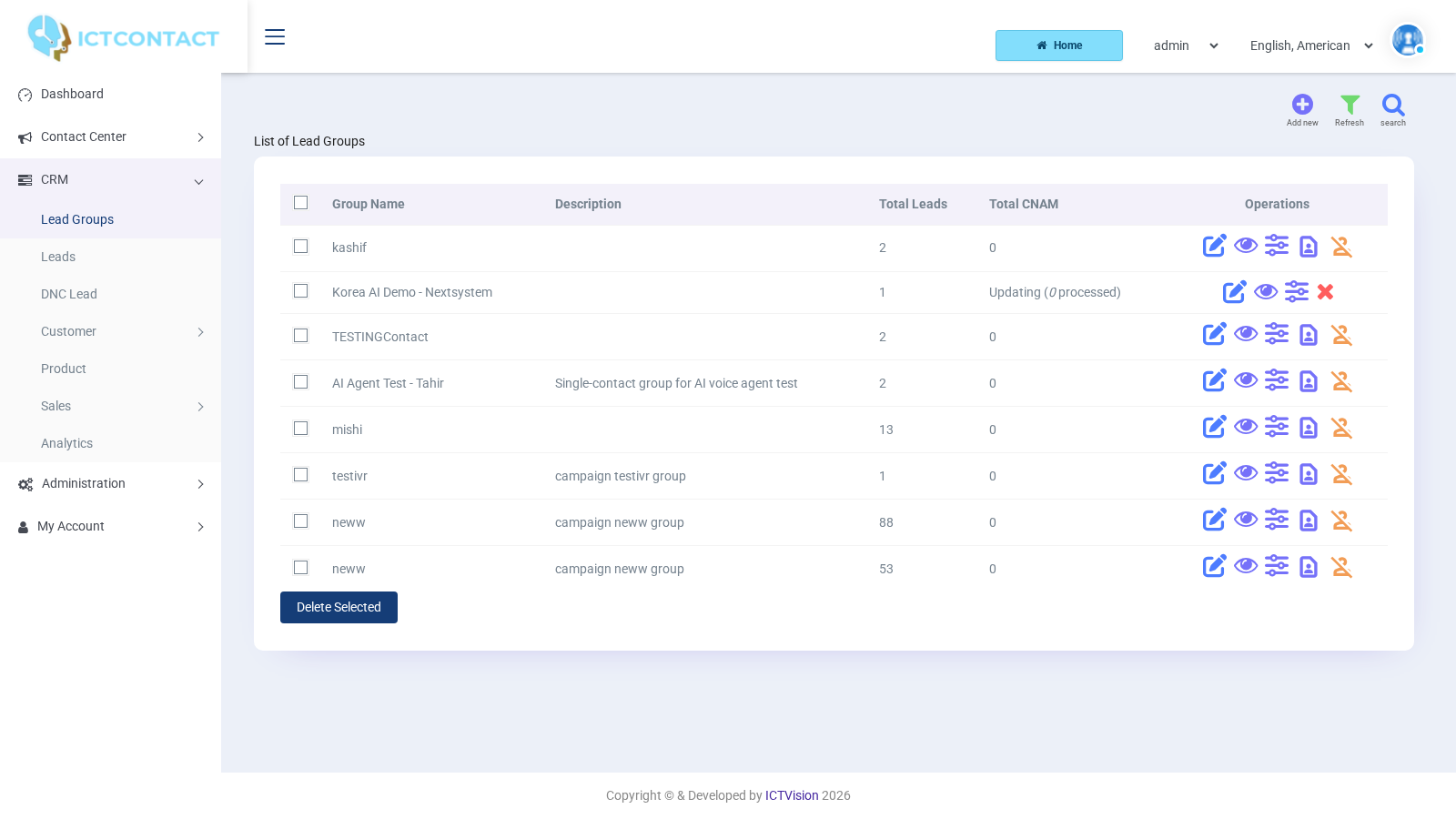
CRM > Lead Groups lists Group Name, Description, Total Leads, Total CNAM and Operations. The top buttons are search, Add new and Refresh.
The row icons are:
- Edit Lead Group
- View leads in this group
- Search and delete unwanted leads from this group (the filter)
- Start a process to create or update CNAM database for this group
- Drop all CNAM records associated with this group
While a CNAM run is active, the start icon is replaced by Stop CNAM update process.
Create a group and load leads
- Click Add new.
- Under Group Description, enter Title (required) and Description. Group Type has one option, Internal Leads.
- Under Import Leads (Optional), choose a Type of Source:
- [continue without import]: an empty group you fill later.
- Upload Lead via standard file: a CSV in the sample layout (Example File link: Lead_sample.csv). The columns are phone, first name, last name, email, address, then up to eight custom values.
- Upload Lead via custom file: any CSV. Set Column Separated By (default comma), Column Enclosed By (default double quote) and Rows to Skip (default 0). After Save you land on Map Lead fields with CSV. Each CSV Column # there has a dropdown of lead fields or [ignore this field], with sample data beside it. Save again to import.
- Copy Leads from existing Groups: pick one or more Source Groups.
- Under Scan for CNAM, choose Fetch CNAM Data if you want the CNAM provider queried after the import. Otherwise leave it on Don't fetch.
- Click Save.
Filter (search and delete)
The funnel icon opens a form that deletes leads matching your criteria from that group. The options are:
- Contact Filter: Phone number (Invalid or no phone number), Email address (Invalid or no email address).
- CNAM Filter: CNAM Record (Invalid or no CNAM record, No CNAM record, Invalid record), Contact Type (Landline, Wireless / Mobile, Pager, VoIP, Other), Ported Contacts (Ported, Not ported).
- Filter contacts: Do Not Call Registry (DNC) (Listed in DNC), Duplicate Contacts (Duplicate phone numbers, Duplicate email address) and Which copy of duplicate (Older copies, Newer copies).
Each dropdown defaults to [doesn't matter]. The CNAM filters only do something if the group has been scanned.
Leads
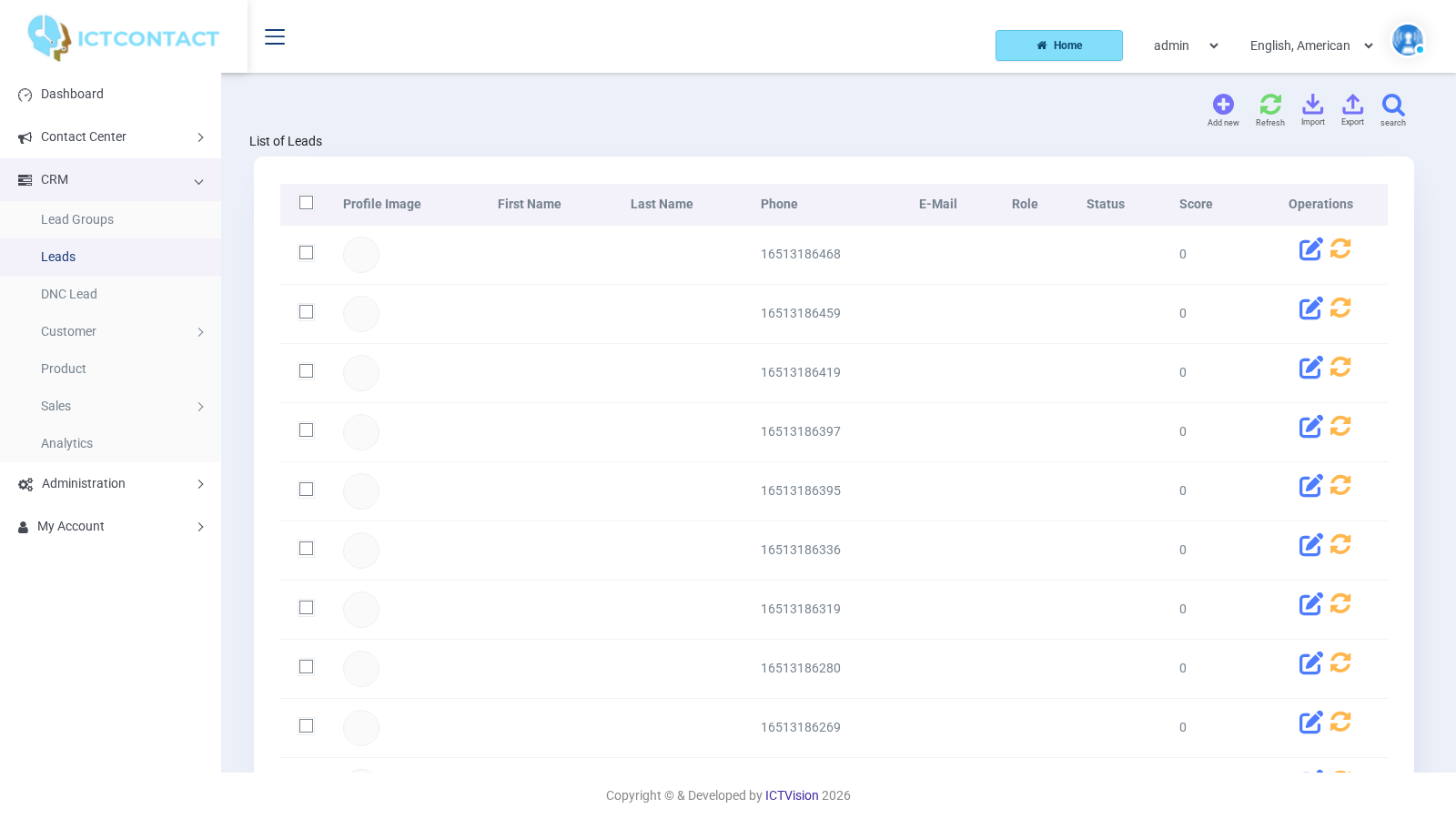
CRM > Leads shows every lead across your groups. The columns are Profile Image, First Name, Last Name, Phone, E-Mail, Role, Status, Score and Operations. The Operations icons are View activity timeline, Edit Lead, View CNAM record (only when one exists) and Update CNAM record. Delete Selected removes the rows you've ticked.
The top buttons are search, Add new, Import, Export (CSV of the current filter), Timeline and Refresh. The edit form has Save, Reset and Cancel.
The search panel filters on Lead Group, Name, Phone, E-Mail, Tag, Assigned Agent, Filter ([No Filter], [Invalid Contacts], [Duplicate Contacts]) and Date. Admins also get Client. With Saved Segment, Segment action (Apply or Delete) and Save search as, you can keep a filter under a name and reuse it.
If you pick the [Duplicate Contacts] filter, the screen switches to a view listing First Name, Last Name, Phone, E-Mail and Date. It has three buttons: Delete Selected, Delete Duplicate (keep latest) and Delete Duplicate (keep old).
Lead form
Add new and Edit use the same form.
- Profile Picture: Profile Image (JPG, PNG or GIF).
- Personal Information: First Name, Last Name, Status, Salutation (Mr., Mrs., ms., Dr.).
- Client: Phone Number (required, digits only), E-Mail, Address, Company (a dropdown of records from CRM > Customer > Company), Client Role (the person's position, for example CEO).
- Messanger: pick Chat Massage, Whatsapp or Skype and type the handle or URL. Add … reveals another row.
- Groups: Related Groups (multi-select of your lead groups) and Tags (comma separated, for example vip, callback, urdu).
- Consent: Email consent, SMS consent (Unknown, Yes, No) and Consent source. Consent source is a free-text note of where the consent came from.
- Additional Data: this only appears when extra fields have been configured for the account.
Status has four values: Unassigned, In Progress, Processed and Junk Lead. Nothing changes it automatically, with two exceptions. A disposition set to Mark as Junk Lead changes it. So does a conversion, which marks the old lead Converted and creates the contact or deal record.
Score is the Lead Score. It starts at 0 and moves every time an agent dispositions the lead. The defaults are Sale +20, Interested +10, Scheduled / Callback +5, Not-interested -10 and Invalid number -20. If you've set a Score adjustment on the disposition, that's used instead. Click the Score header to sort the list by Score, highest first.
Import
The Import button opens the same import form as the group wizard:
- Import Lead From: Type of Source, Upload lead's File, Example File, Source Groups.
- CSV Format, for custom files.
- Import Leads Into: a required Target Group, and Fetch CNAM Data.
Lead versus contact
CRM > Leads and CRM > Customer > Contacts use the same form and the same import and filter screens. The differences are in what the list shows and what can happen to the record.
- The Leads list has the Score column. The Contacts list doesn't. Both show Status.
- The Contacts list has a Move Selected to DNC button. The Leads list only has Delete Selected.
- Dispositions convert leads. If a contact gets a Sale disposition, it gets the score and the history entry, but it isn't converted again.
- You can raise Quotes and Invoices against a Lead, a Deal or a Contact (the Source field), so you don't have to convert first.
When you create a campaign, you select Lead Groups as the contact list, the same way you'd select Contact Groups.
DNC Lead
CRM > DNC Lead is the do-not-call list. Campaigns skip the numbers on it, and you can strip them out of a group with the DNC option in the group filter. The top buttons are search, Add new, Import, Export and Refresh. The columns are First Name, Last Name, Phone, E-Mail and Operations (Edit DNC). Delete Selected removes the rows you've ticked.
There are two lists:
- User DNC Group belongs to your account.
- Global DNC Group applies to every account on the system.
The DNC Group selector, on the form and in the search panel, only appears for users who hold the global DNC permission. Everyone else works in their own list.
Add one number
- Click Add new.
- If you see the DNC Group fieldset, choose [User DNC Group] or [Global DNC Group].
- Fill in Personal Information (First Name, Last Name) and DNC Addresses (Phone Number, E-Mail, Address). Under Comments / Remarks, add a Description.
- Click Save.
Import a file
- Click Import.
- If the Import into field is shown, choose [User DNC Group] or [Global DNC Group].
- Upload DNC File in the layout of the Example File (dnc_sample.csv): phone, first name, last name, email, address, comments.
- Click Save.
The search panel filters on Name, Phone, Email, DNC Group and Date.
Numbers can also be pushed onto the list from a call. The contact list screen has Move Selected to DNC. And the Interactive and Integration campaign types have an Action on DNC option that lets the called party press 9 to be removed.