
Billing, Routes and Rate Plans Guide
All the money and routing work happens on four pages under Contact Center > Billing: Payments, Routes, Rate Plans and Rates. Here's how they fit together. You assign a Rate Plan to a client. Rates belong to a plan and a destination, and they say what that client pays per unit when calling that destination. Routes map a destination to a trunk, so the dialer knows where to send the call. If two trunks serve the same destination, the trunk's Weight breaks the tie. Payments add credit to the client's balance, and every call takes its cost (from the rate) back off. Set them up in the order below. A campaign won't dial a number that has no route, and if the client's plan has no rate for the destination, there's nothing to charge.
Rate Plans
A plan is a named price list. To create one:
- Click New Rate Plan.
- Fill in Rate Plan Name and description.
- In the Permissions fieldset, pick a Permission Group (a select, [All Permissions] or one group). It filters the Permissions multi-select below it.
- Click Save.
The list shows Rate Plan Name, Description and Operations (Edit Rate Plan). You can filter on Rate Plan, and Delete Selected removes the rows you've ticked.
You assign the plan on the client form (Administration > Client Management, field Rate Plan). A new plan takes effect on the client's next call. It doesn't re-rate old CDRs.
Rates
There's one rate per plan, service and destination. Click New Rate and you'll see these fieldsets:
| Fieldset | Fields |
|---|---|
| Rate | Name, Rate Plan, Services (Voice, Fax, SMS, Email, Video) |
| VoIP | VoIP Block, VoIP Rate, Weight (-10 to 10) |
| Billing | Billing Block, Rate, First Interval, Increment Interval |
| Destinations | Region, Country, Destination |
The Billing fieldset is what the client pays:
- Rate is the price per Billing Block.
- First Interval is the minimum charged on every answered call.
- Increment Interval is the step after that.
The block lists use the unit of the service: seconds for Voice, pages for Fax, segments for SMS (values like 1, 6, 30, 60). A typical voice rate is Billing Block 60, Rate 0.02, First Interval 60, Increment Interval 6. That charges the first minute in full, then every 6 seconds.
The VoIP fieldset is the cost side, meaning what the trunk charges you. It feeds the profit figures on the dashboard. Weight picks between rates that overlap for the same plan and destination, and the lowest Weight wins. Pick Region and Country to narrow the Destination list, then save.
The rate list shows Rate Plan, Service, Destination and Rate. You can filter on Rate Plan, Destination, Service and Rate, and the Export button writes the filtered rows to CSV.
Importing rates from CSV
Most people load a whole country at once:
- Click Import.
- Pick the Rate Plan and the Services the file is for.
- Upload the file. Check the Example File link, rate_sample.csv, for the layout.
The columns are, in order:
| Column | Meaning | Sample |
|---|---|---|
| 1 | destination prefix | 1 |
| 2 | rate name | canada/usa |
| 3 | billing block (seconds for voice) | 60 |
| 4 | rate per block | 1.50 |
| 5 | first interval | 60 |
| 6 | increment interval | 60 |
So the sample line 1,canada/usa,60,1.50,60,60 means prefix 1, charged 1.50 per 60-second block, with the first 60 seconds as the minimum, then 60-second steps.
A few rules for the file:
- Don't include a header row. Delete the comment lines at the bottom of the sample before you import.
- You can leave off trailing columns. The importer only fills the ones you gave.
- The prefix must already exist as a destination.
- Rows that collide with an existing rate for the same plan are skipped, not overwritten.
The page tells you how many rates were imported. It accepts an xls file too, but CSV is the one we test.
Routes
A route says which trunk carries calls to a destination for a given service. To add one:
- Click New Route.
- Pick Services, then Trunk. Only outbound trunks that carry the chosen service are listed.
- Under Destinations pick Region and Country, then select one or more prefixes in the Destination list.
- Click Save.
The list shows Service, Destination and Trunk. The filter has Region, Country, Service and Trunk. Next to Search there's a Search and Delete button that removes every route matching the filter. That's the quick way to clear a country before you re-import it.
Import takes a CSV with one line per destination, prefix then name, as in route_sample.csv (1,canada/usa). You pick the Services and the Trunk on the import form, and every line in the file is routed to that trunk. Export writes the current routes out in the same shape.
Here's how the dialer uses all this:
- It takes the dialed number and finds the longest prefix that has a destination. For 923331234567 it tries 92333123456, 9233312345 and so on, down to 92.
- It looks up the routes for that destination and the campaign's service.
- It keeps only trunks that still have free channels and CPS.
- It orders them by the trunk's Weight (lowest first), then by how loaded they are.
There's no priority field on the route itself. Set Weight on the trunk under Administration > Gateways instead. Weight runs from -10 to 10, so give a backup trunk a higher number than the main one.
Payments
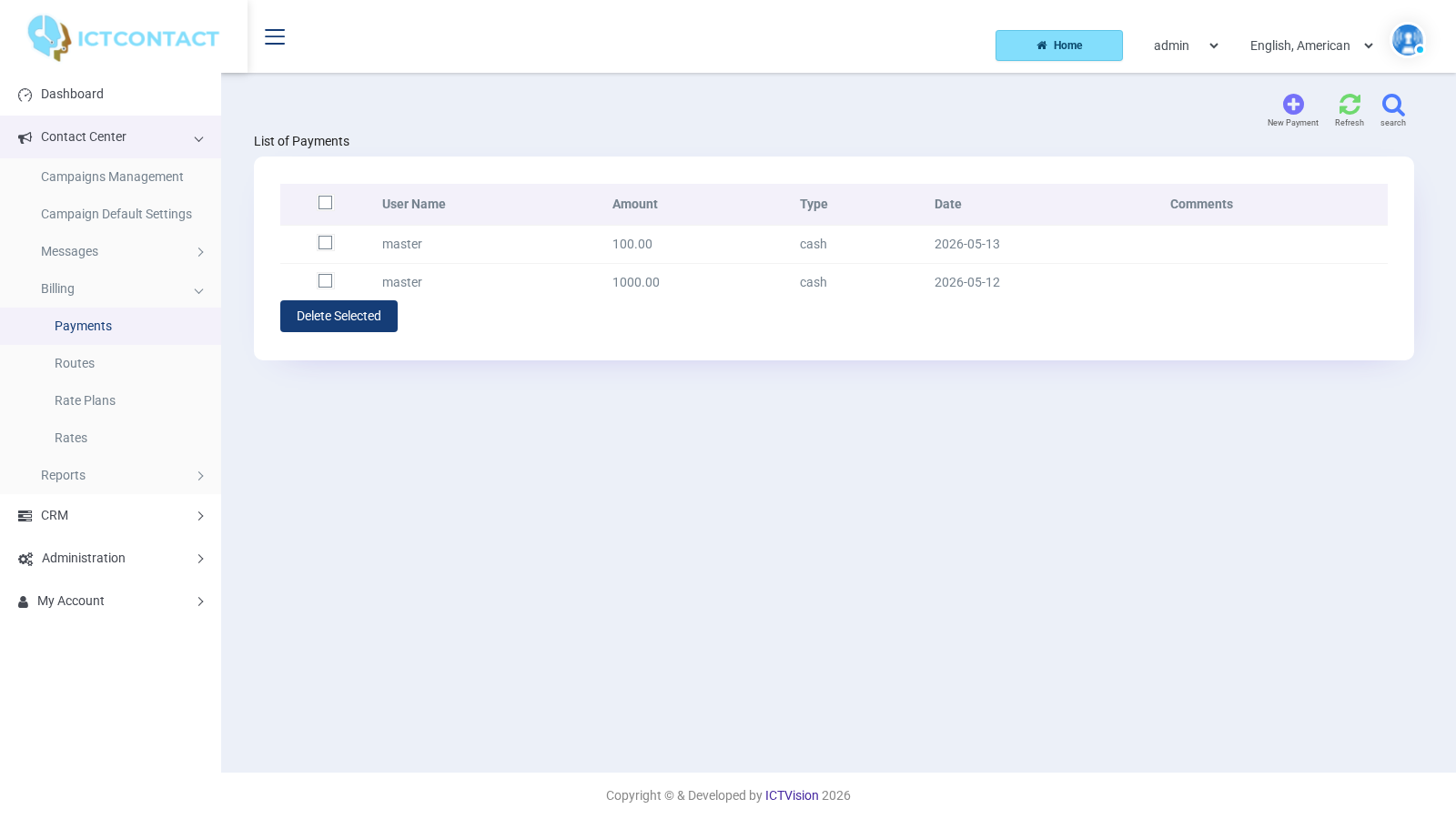
Click New Payment. The fields are Paid By (the client), Comments, Total Paid Amount (positive only), Payment Type (Cash, Cheque, Online Payment, Other) and Date paid on. Saving adds the amount to the client's balance. Deleting the payment row subtracts it again.
The list shows User Name, Amount, Type, Date and Comments, and you can filter by Client, Company, Amount, Payment Type and Date. Clients see their own list under My Account > Payments.
Where the numbers show up
Reports > CDR shows, per call, the Destinations name, the Provider (trunk), the Rate applied and the Cost. Reports > Overview totals them per campaign as Amount, Net Amount and Total Cost. The dashboard's Daily, Monthly and ALL Profit cards are the client Amount minus the VoIP cost over the same calls.
If a call shows a Cost of 0 and the client wasn't charged, the plan has no rate for that destination. If the call failed with no Provider, there was no route.