
Message Designer Guide
Message Designer builds a spoken message out of parts. A part can be a recording, a date read from the contact record, a time, or a line of text-to-speech, and you can finish with a "press 1 to confirm" step if you want one. The result is saved as an IVR Message.
Appointment Reminder campaigns play an IVR Message to each contact. It's also what an Appointment Reminder leaves on an answering machine when Action on AMD is set to Leave Reminder. Open it from Contact Center > Messages > Message Designer.
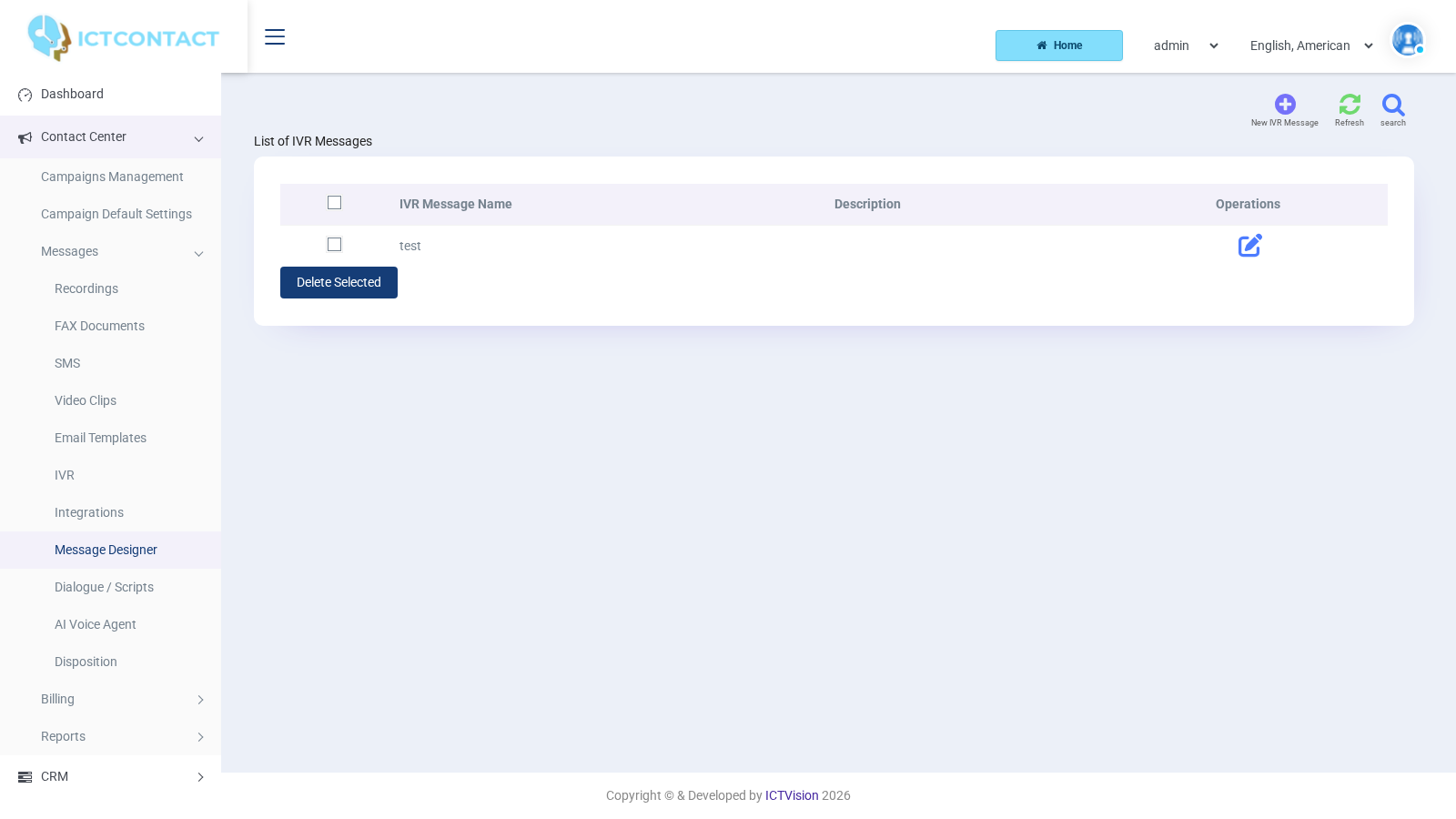
The list shows IVR Message Name, Description and Operations (the pencil edits). The top buttons are search, New IVR Message and Refresh. Delete Selected sits under the table.
How it differs from the IVR designer
The IVR page draws a flow chart with branches and keypad menus. Message Designer is a straight list. Part one plays, then part two, and so on to the end. There's no canvas, no Get Input and no Condition. There's no transfer either, except the one key inside the Confirmation part.
Use it when you want to tell the contact something, with their personal details read out, and at most ask for a yes or no.
The page
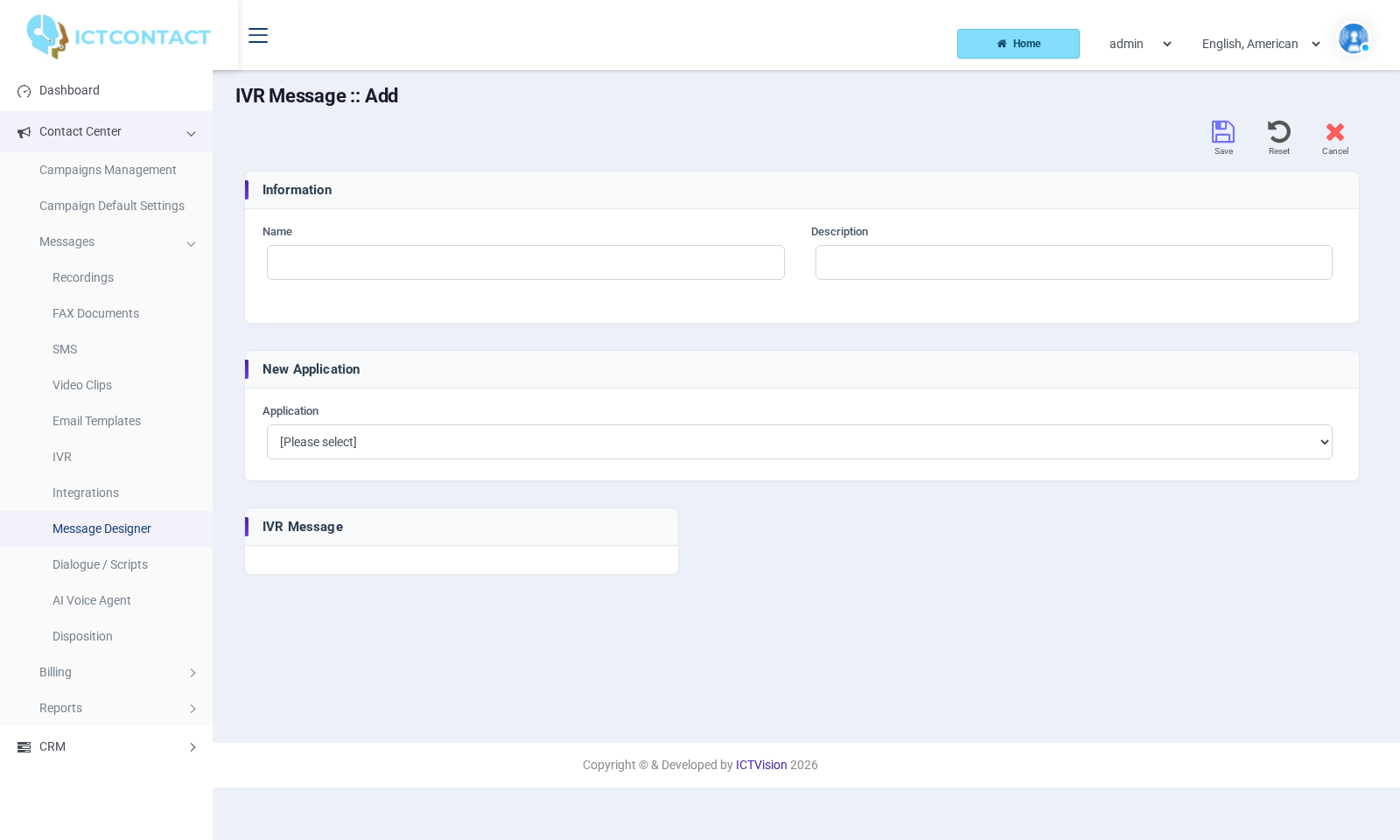
New IVR Message opens a form with three areas.
Information: Name and Description. Name is required and takes letters, digits and underscore only, with no spaces.
New Application: an Application dropdown with [Please select], Play Audio, TTS, Say Alpha, Say Digit, Say Number, Say Date, Say Time and Confirm Reminder. When you pick one, that part's fields appear, along with an Add button and a Cancel button.
IVR Message (the right hand column): the parts you've added, in play order. Each row has a drag handle to reorder it, a pencil to edit it and a cross to delete it. While you're editing a part, the Add button turns into Save.
Nothing is saved until you click Save in the top bar. Reset clears your changes. Cancel takes you back to the list.
The parts
Play Audio. Recording: one of your recordings from Contact Center > Messages > Recordings. The dropdown shows [Select Recording] until you pick one. If you don't pick one, Add refuses with "Please select a valid recording."
Text to Speech (TTS in the dropdown). A text box. The server speaks the text with its text-to-speech engine (Festival on a default install). If TTS plays silence, the engine isn't installed. Ask your administrator.
Say Alpha. Spells out characters one at a time, which is handy for a booking reference. In Select variables, pick a contact field, or leave it on custom and type the value in the box below. Typing in the box clears the variable selection.
Say Digit. Reads digits one by one. It has the same two fields: Select variables or a typed value.
Say Number. Reads a whole number ("two hundred and ten"). Select variables or a typed value.
Say Date. Speaks a date. Use Select variables, or click the box to open a calendar picker. If you use a contact field here, it must hold the date as mm-dd-yyyy.
Say Time. Speaks a time. Use Select variables, or choose the hour (00 to 23) and minute (steps of 5, plus 59) from the Time dropdowns. If you use a contact field here, it must hold HH:MM in 24-hour form.
Confirmation (Confirm Reminder in the dropdown). Plays a recording and waits for a key.
| Field | What it does | Default |
|---|---|---|
| Recording | The prompt that plays while it waits for a key | [Select Recording] |
| Response Time | How many seconds to wait for a key | 10 |
| Confirm Key | The key that confirms the appointment (0 to 7) | 1 |
| Cancel Key | The key that cancels it (0 to 7) | 2 |
| Transfer Key | The key that sends the call to a person (none, or 0 to 7) | none |
| Agent / Operator Extension | Where the Transfer Key sends the call | first extension |
| Replay Key | The key that replays the message (0 to 7, *, #) | * |
Every field is mandatory ("All fields are mandatory."), and no two keys can be the same ("Key settings are conflicting."). The caller's choice is stored as the call response and shows up in the campaign reports.
Contact fields you can read out
The Select variables dropdown in the Say parts lists [contact:first_name], [contact:last_name], [contact:phone], [contact:email], [contact:address] and the custom fields [contact:custom1] to [contact:custom8]. There are eight custom fields by default. The administrator can rename them, but the token keeps the custom number.
The value comes from the contact being called, so the same message reads out a different date for every person. Say Alpha and Say Digit work well with names and reference numbers. Say Number on a phone number reads it as one giant number.
Worked example: an appointment reminder
Here's what we want each patient to hear: a greeting, "your appointment is on", the date, "at", the time, and then "press 1 to confirm, 2 to cancel, 0 for reception".
Prepare the contact group first. Under CRM > Customer > Contact Groups, import contacts with:
- the appointment date in custom1 as mm-dd-yyyy (for example 10-21-2026)
- the time in custom2 as HH:MM (14:30)
- the full appointment start in custom3 as mm-dd-yyyy HH:MM:SS (10-21-2026 14:30:00)
The reminder scheduler reads custom3. The message speaks custom1 and custom2. Then upload three recordings: reminder_intro, reminder_at, reminder_confirm.
- Message Designer, New IVR Message. Name: appointment_reminder.
- Application: Play Audio, Recording reminder_intro, Add.
- Application: Say Date, Select variables [contact:custom1], Add.
- Application: Play Audio, Recording reminder_at, Add.
- Application: Say Time, Select variables [contact:custom2], Add.
- Application: Confirm Reminder. Recording reminder_confirm, Response Time 10, Confirm Key 1, Cancel Key 2, Transfer Key 0, Agent / Operator Extension your reception extension, Replay Key *. Add.
- Check the order in the IVR Message list. If something's out of place, drag the row. Then Save.
Now the campaign. Go to Contact Center > Campaigns Management, click Add new and pick the Appointment Reminder card.
- Reminder Information (the first step): Name, Caller ID.
- Appointment step: Contact Group, and Reminder Message = appointment_reminder.
- Reminder Campaign Configuration: Appointment Type.
- Group Appointment calls everyone now, like a broadcast.
- Individual Appointments reads each contact's own time. Set Appointment Start Field to custom3. Set Reminder Call Time to how many hours before the appointment to call (we usually use 24). Set Appointment Stop Field if you have one, and Reminder Expiry Time for how long after that to keep trying.
- General Options: Action on DNC, and Action on AMD. Action on AMD has the extra choice Leave Reminder, which plays the same IVR Message to an answering machine instead of a plain recording.
- Settings, as for any voice campaign. Then Save and Start.
Before you run the real list, try it on a group of two or three test contacts (your own numbers). Listen for the date. If you hear nothing where the date should be, the custom field isn't in mm-dd-yyyy form.