ICTContact is a web-based, multi-tenant contact center software that provides dedicated web portals for Administrators and Users. It enables end-to-end campaign and interaction management for each tenant. Users can independently create, manage, monitor, and run multiple campaigns and communication workflows without interfering with other tenants. The platform is designed to give full operational control, visibility, and scalability to organizations managing multiple users or teams under one system.
Learn more aboutICTContact.
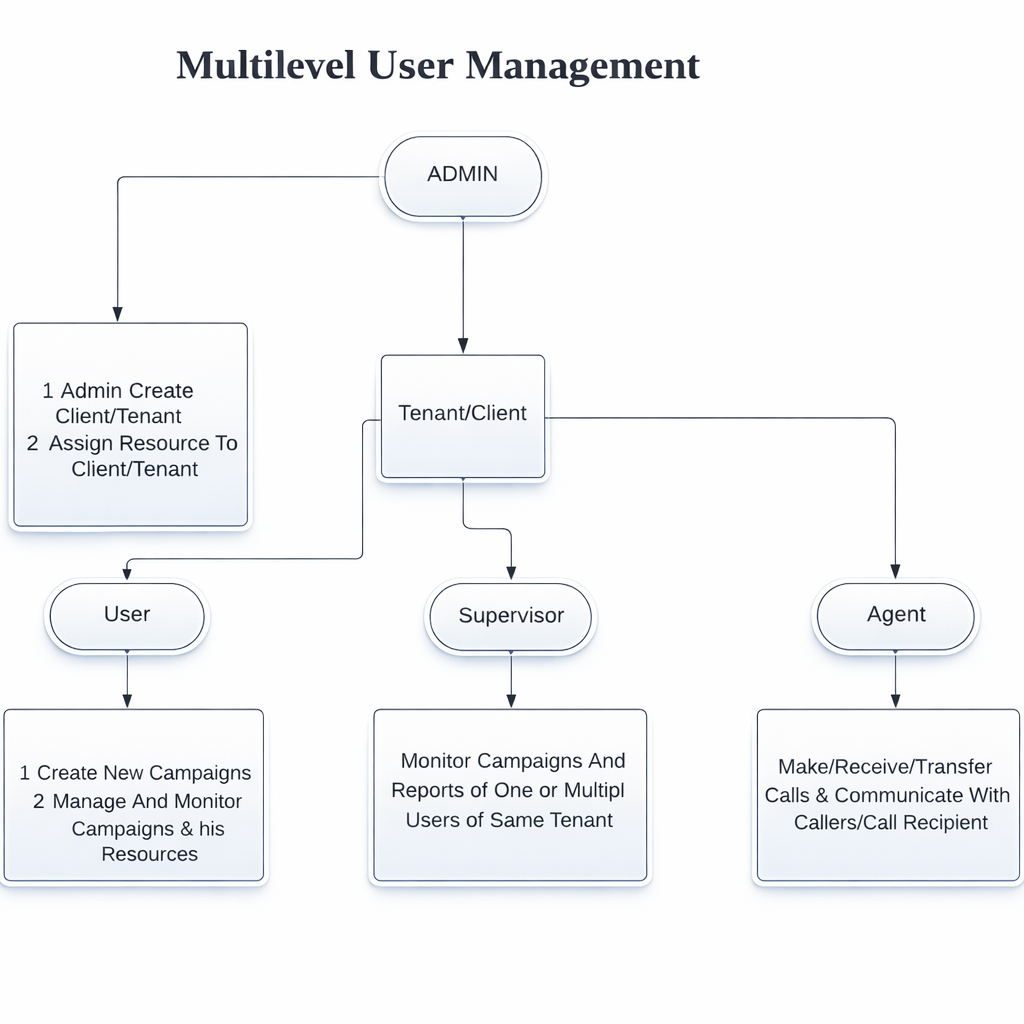
Roles in ICTContact Multi-Tenant Contact Center Software
The following are the roles supported in the ICTContact multi-tenant Contact Center Software
1. Admin:
The Administrator is the owner of the ICTContact deployment and has complete control over the overall system. The Admin is responsible for managing and monitoring the entire ICTContact setup, along with all shared resources.
The Admin can create tenants or clients and allocate resources to each tenant based on operational requirements. This includes creating and managing system-level resources such as extensions and DIDs.
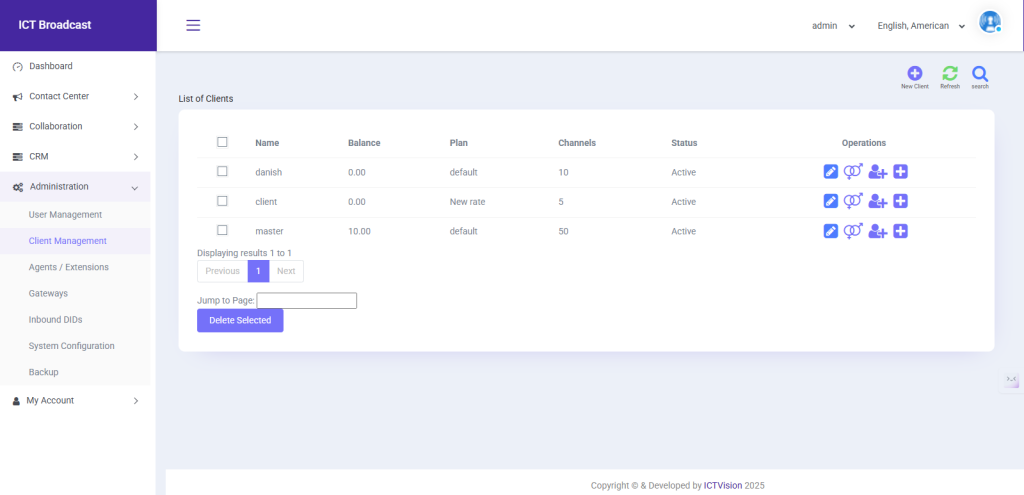
Additionally, the Admin configures billing settings, defines rate plans and call rates, and manages telephony components, including trunks and routing rules. With centralized administrative control, ICTContact ensures efficient resource distribution, system stability, and seamless operations across all tenants and contact center activities.
2. Tenant / Client:
ICTContact lets tenants manage their contact center teams effortlessly. Tenants can create and control supervisor and agent accounts, assign resources like extensions and DIDs, and oversee performance—all from a single platform. This ensures smooth operations, clear accountability, and efficient resource utilization.
3. User:
Users in ICTContact can create new campaigns and take full control over them. They can manage campaign settings, monitor real-time performance, allocate and track their resources assigned to their clients, and oversee all associated data. This centralized management ensures campaigns run efficiently, resources are utilized effectively, and insights are readily available for better decision-making.
4. Agent:
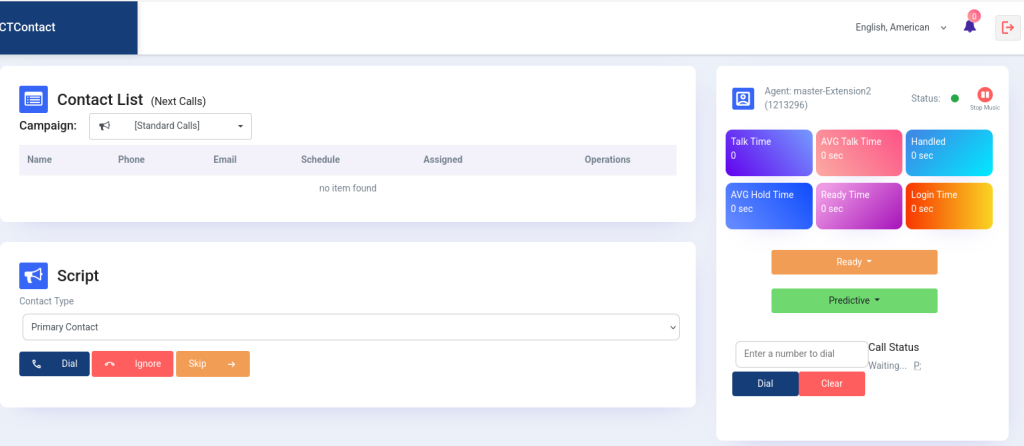
Agents in ICTContact can make, receive, and transfer calls, seamlessly communicating with callers or call recipients. They manage both inbound and outbound campaigns, including predictive, progressive, and preview campaigns. After each call, agents can update contact information directly, and can also update the Disposition, such as interested, not interested, or sales done. The agent can also reschedule the call if the call is not answered, busy, or failed.
5. Supervisor:
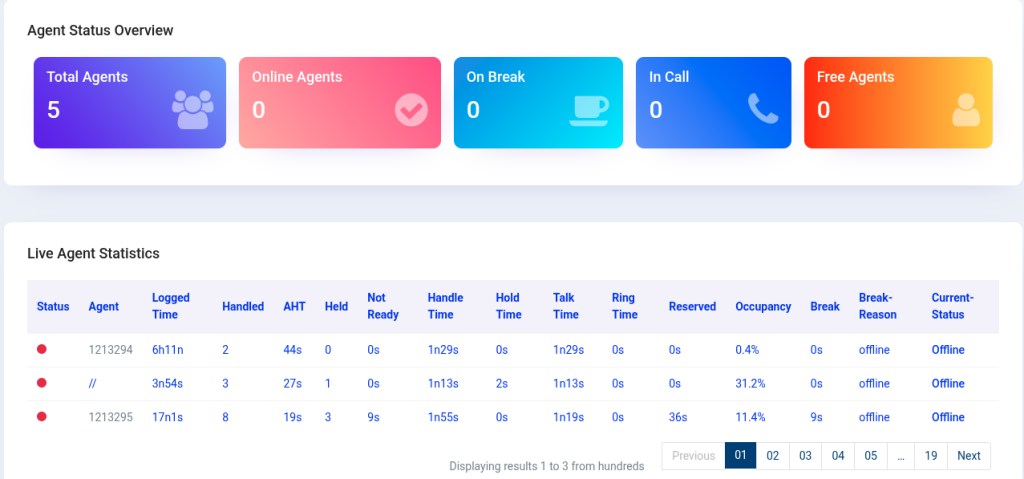
Supervisors in ICTContact can monitor campaigns and view detailed reports for one or multiple users and agents within the same tenant. This enables them to track performance, oversee campaign progress, and ensure team productivity across all managed resources.
How to Create a New Client / Tenant Account:
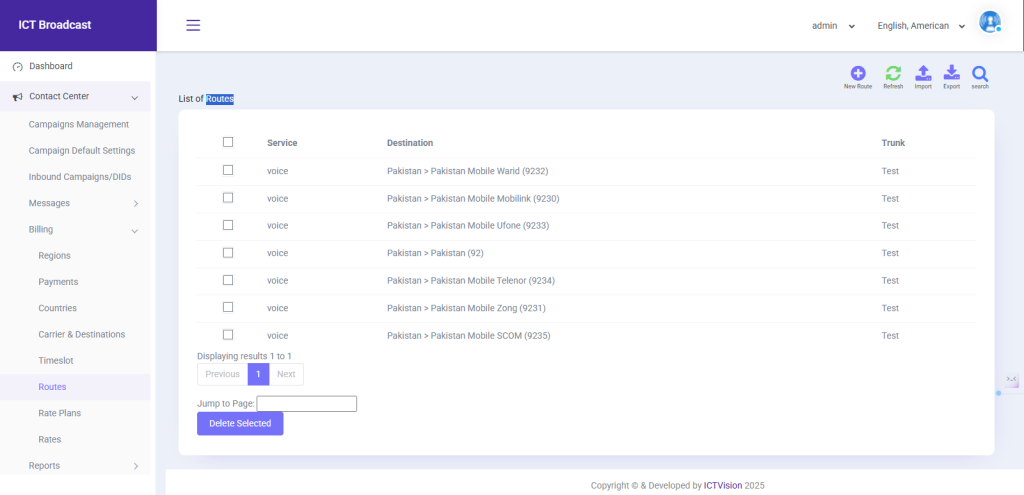
Admin can create and manage client/company accounts. Admin assigns resources, DID, and Extensions to the client, and all users under that client can use all his resources.
Steps:
- Open the navigation menu and select the Administration menu
- Select the sub-menu Client management from the main menu and click on it
- Click on the New client button from the Client list page
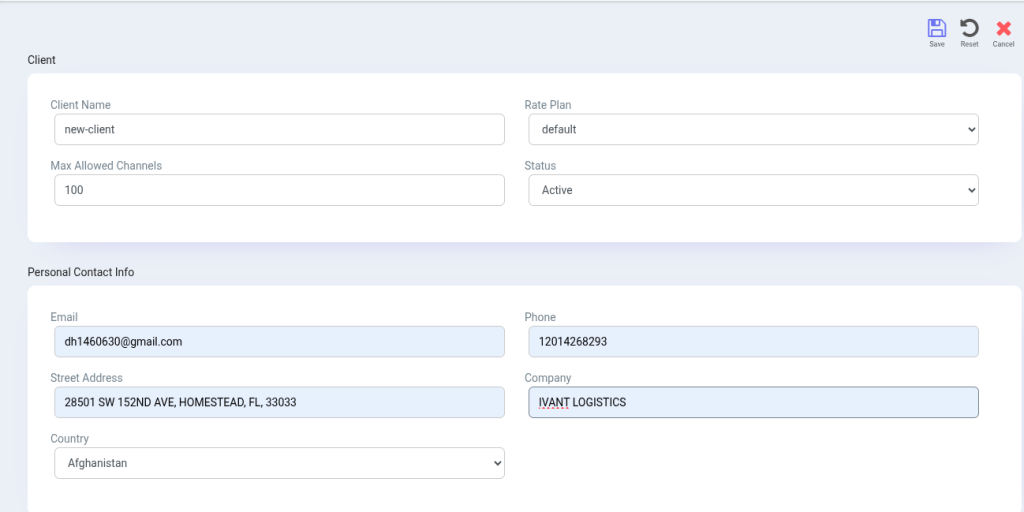
- The add page will open, admin has to add/enter the required information in the desired fields
- Enter client name, Select rate plan, enter maximum allowed channel, and select status as active
How to Create new User in ICTContact:
The user can create and monitor their campaign. The user can add contacts and recording message.
Steps:
- Open the navigation menu and select the Administration menu
- Select the sub-menu User management from the main menu and click on it
- Click on the New user button from the User list page
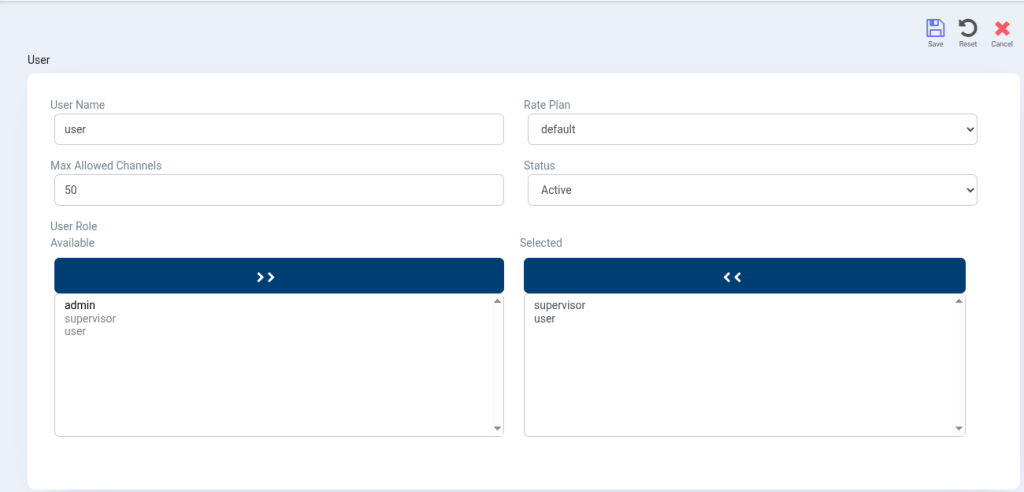
- The add page will open, and the admin has to add/enter the required information in the desired fields
- Enter the user name, select Client account from the owner section
- Select status as active and select/assign a role
- Add the Password, PIN code, and the personal information such as Email, phone number, first name, last name, and address.
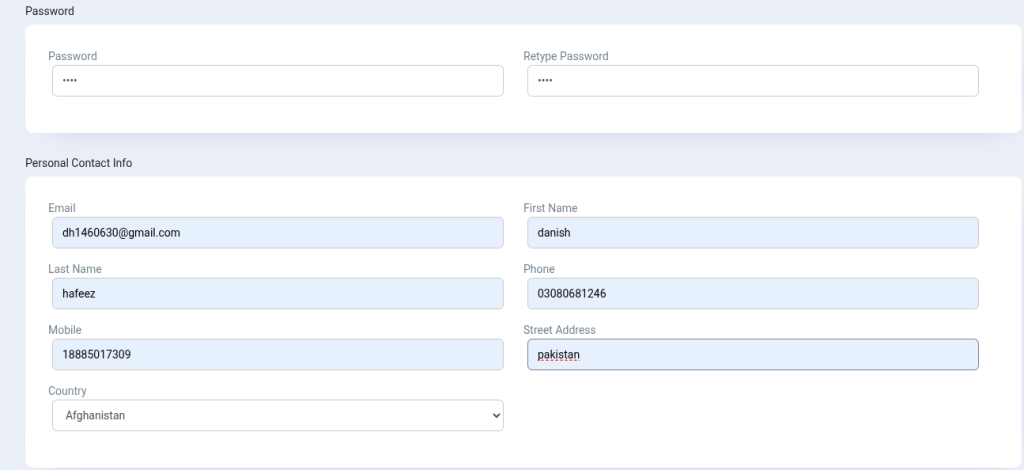
- After that, click onth save button to save the user.
How to Assign a Resource to a Client:
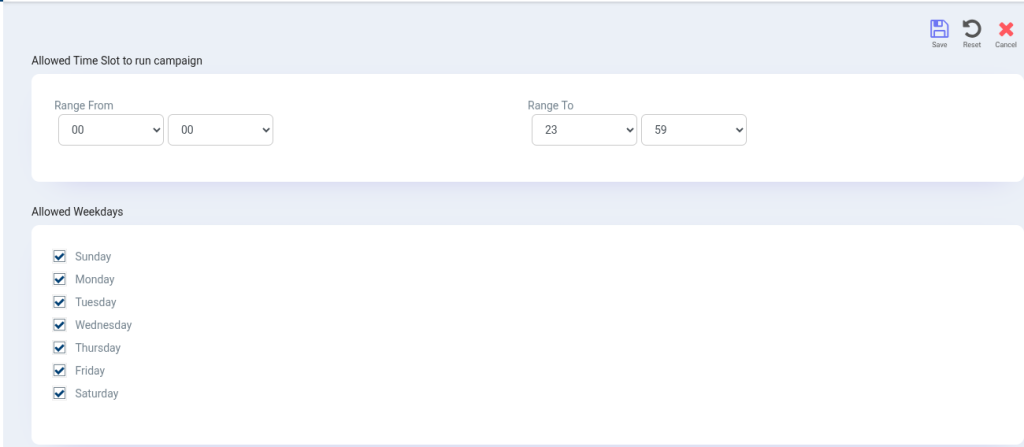
Administrators can assign resources to tenants. Assigning specific ‘Timeslot’ and Days of the week to run campaigns. User will only run the campaign in the allotted Time slot and selected Days of the week. Tenant and his users will run campaigns at allowed Timeslot and Days of the week; otherwise, the running campaigns will be stopped immediately.
Steps:
- Open the navigation menu and select the main menu Administration
- . Select the sub-menu Client management from the main menu and click on it
- . Select the client account from the client list page and click on the Assign DID button from the operation menu.
- Resource Assignment page will open. Admin can Allowed time slot to the Tenant/Client to run the campaign.
- Admin can assign permission to the tenant/client