
Creating campaign messages is easier with ICTContact’s built-in Message Designer. This simple tool helps users design messages for voice broadcasting, feedback, and appointment reminder campaigns without coding or extra software. With its easy interface, you can quickly create voice prompts, confirmation reminders, or text messages using the TTS application. Everything is available inside the ICTContact contact center platform, helping businesses send professional and personalized messages efficiently.
What is Message Designer?
Message Designer is a visual and user-friendly interface that helps users create message templates for auto dialer campaigns. It can be used to design messages for appointment reminders, surveys, alerts, feedback campaigns, and promotional calls.
With Message Designer, users can create telephony voice messages that are played when a call is answered. It allows you to combine voice recordings, text-to-speech prompts, alphabet, numbers, digits, and date or time announcements to build complete call messages. It also includes options to capture responses from recipients during reminder or feedback calls.
IVR Message Applications in ICTContact’s Message Designer
The Message Designer in ICTContact is a visual tool used to create customized and personalized messages for automated communication campaigns. It allows users to design voice messages by combining different message applications and inserting dynamic tokens where needed.
Users can personalize campaign messages by inserting variables such as customer names, order numbers, or appointment details. With applications like Text-to-Speech (TTS), the system can convert these dynamic text messages into natural-sounding voice prompts during automated calls.
The Message Designer supports several message applications, including TTS, Say Number, and Say Alpha, allowing users to build flexible and interactive IVR messages.
Play Audio
This option allows you to insert a pre-recorded audio file into your campaign message. It is useful for maintaining consistent voice branding or delivering frequently used announcements.
Text-to-Speech (TTS)
The TTS application converts written text into speech. It is ideal for dynamic messages where variables or tokens are used, such as customer names, appointment details, or order information.
Say Alpha
The Say Alpha application spells out alphabetic values or variables during a call. It is useful for delivering information such as confirmation codes, initials, or reference IDs.
Say Digit
Say Digit reads out numbers one digit at a time. This is helpful when announcing PIN codes, verification numbers, or identification numbers where clarity is important.
Say Number
This application reads full numbers in a natural format instead of individual digits. It is commonly used for invoice numbers, balances, or other numeric values.
Say Date
The Say Date application allows you to include specific dates or date variables in your message. It is particularly useful for appointment reminders, deadlines, or event notifications.
Say Time
Say Time enables the system to announce specific times or time variables in your message, helping recipients clearly understand when an event or appointment will occur.
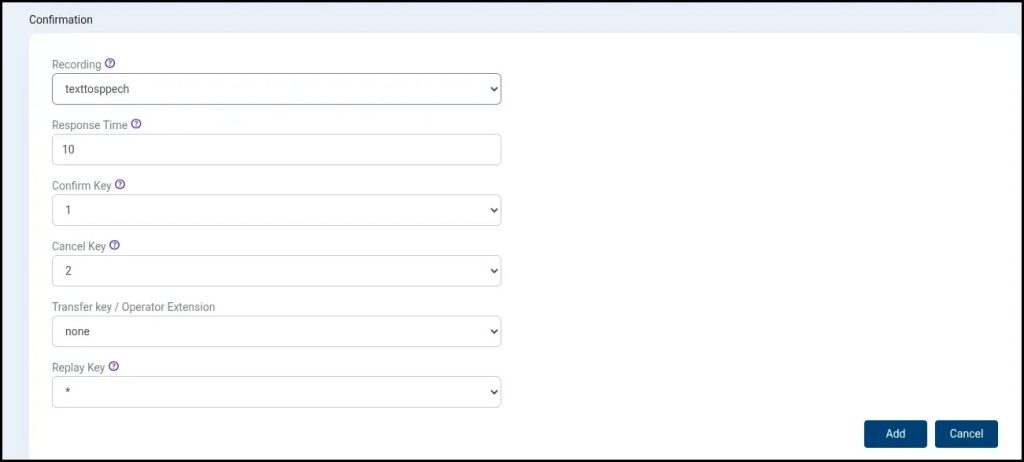
Confirm Reminder
The Confirm Reminder feature adds interactivity to IVR campaigns. It plays a voice prompt asking the recipient to press a key in response to a reminder call.
For example:
- Press 1 to confirm the appointment
- Press 2 to cancel
- Press 0 to transfer the call to a live agent
These key actions and destination extensions can be customized according to campaign requirements.
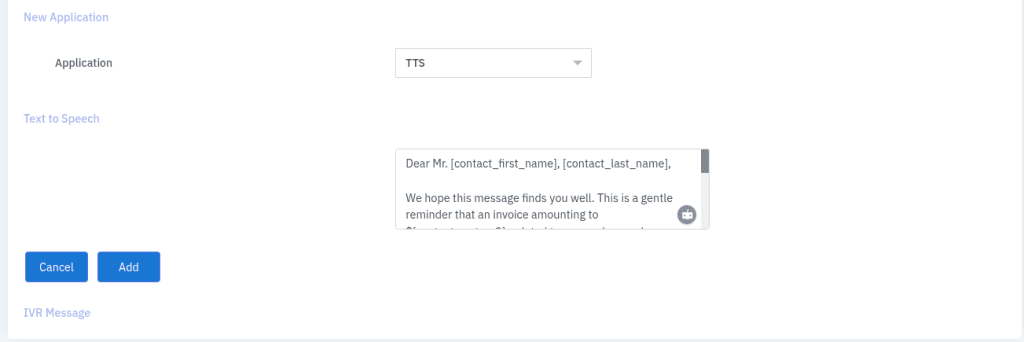
Example: Creating a Personalized Message Using TTS
Below is an example of a personalized message created using the TTS application and dynamic tokens:
Dear Mr. [contact_first_name] [contact_last_name],
This is a reminder that an invoice amounting to $[contact:custom2], related to your order number [contact:custom3], is still pending.
Kindly make the payment at your earliest convenience using the following PayPal address: [contact:custom4].
If you have any questions or need assistance, please feel free to contact us.
Thank you for your prompt attention.
Creating a New IVR Message Using Message Designer in ICTContact
To create or test a customized IVR message using the ICTContact Message Designer, you can access the demo system and follow the steps below.
Visit the ICTContact demo page to access the system credentials:
https://www.ictcontact.com/ictcontact-demo-credentials/
Steps to Create a Customized IVR Message
- Login to ICTContact using Admin or User credentials.
- From the main menu, select Messages.
- Click on the Message Designer sub-menu.
- Click the New IVR Message button. A new page will open where you can enter the required message details.
Message Configuration Fields
Name
Enter a name for the IVR message.
Description
Enter a brief description of the message (optional).
Applications
Use the Application dropdown menu to select message components such as Play Audio, Text-to-Speech (TTS), Say Date, Say Number, and other available options.
For example, you can select the TTS application to play a customized text message during automated calls.
Users can also insert various tokens to personalize the message, such as customer names, dates, or other dynamic values.
Click Add to insert the selected application into the IVR Message configuration field.
Once the message has been configured as required, click the Save button to store the IVR message.
Advanced Capabilities of Message Designer in ICTContact
ICTContact’s Message Designer is more than a simple drag-and-drop tool. It is a powerful built-in feature that allows users to create dynamic, personalized, and interactive voice messages for automated communication campaigns.
With support for audio recordings, text-to-speech (TTS), tokenization, and interactive prompts, Message Designer helps businesses deliver professional and human-like communication at scale.
Key Use Cases of Message Designer
1. Automated Appointment Reminders
Send personalized appointment reminders, including contact names, appointment dates, and confirmation options. Recipients can confirm, cancel, or reschedule appointments by pressing a key. This feature is widely used by hospitals, dental clinics, beauty salons, and service providers.
2. Customer Feedback Collection
Design survey or feedback messages using interactive options such as the Confirm Reminder application. Customers can submit responses through keypad input, which can later be used for reporting or follow-up actions.
3. Emergency or Urgent Notifications
Broadcast pre-recorded or TTS messages to notify customers or staff about urgent situations. Tokens can be used to insert names, locations, or other important details for better personalization.
4. Promotional and Marketing Campaigns
Create engaging promotional messages that greet recipients by name and deliver targeted offers. Personalized marketing calls can help improve customer engagement and campaign effectiveness.
5. Event Reminders and Invitations
Send automated reminders for events by including dynamic details such as event date, time, and location using tokens like [contact:first_name] or [contact:custom1].
Benefits at a Glance
- Personalized messaging using dynamic tokens
- Reusable message templates for multiple campaigns
- Simple drag-and-drop interface for message creation
- Interactive options, such as confirmation or agent transfer
- Multi-language support through TTS configuration
If you want to know how to create a custom message using the ICTContact Ivr studio Application, visit → https://www.ictcontact.com/improved-web-based-ivr-designer-ivr-studio-in-contact-center-software/