The integration of ICTContact, a modern contact center software, with HubSpot CRM allows businesses to take customer engagement to the next level. By connecting ICTContact’s unified communication capabilities directly with HubSpot, users can seamlessly manage voice calls, SMS messaging, fax, and interactive campaigns from within their CRM platform.
This integration empowers teams to automate workflows, run targeted voice broadcasting and Press-1 campaigns, and schedule appointment reminders without switching between systems. With features like IVR management, contact group segmentation, and campaign analytics, businesses can ensure every customer interaction is efficient, timely, and personalized.
HubSpot CRM
Create your account in HubSpot CRM to start managing your customer relationships efficiently, or simply log in using your Google account for quick access. Once logged in, you can begin organizing contacts, tracking deals, and integrating with tools like ICTContact to streamline communication and campaigns.
Add Contacts
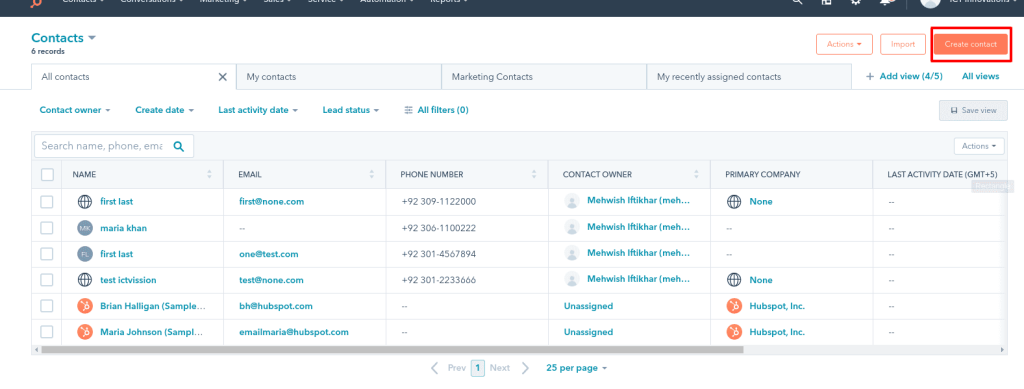
- Go to the menu and select Contacts → Contacts.
- Click the Create Contact button located on the right side of the screen.
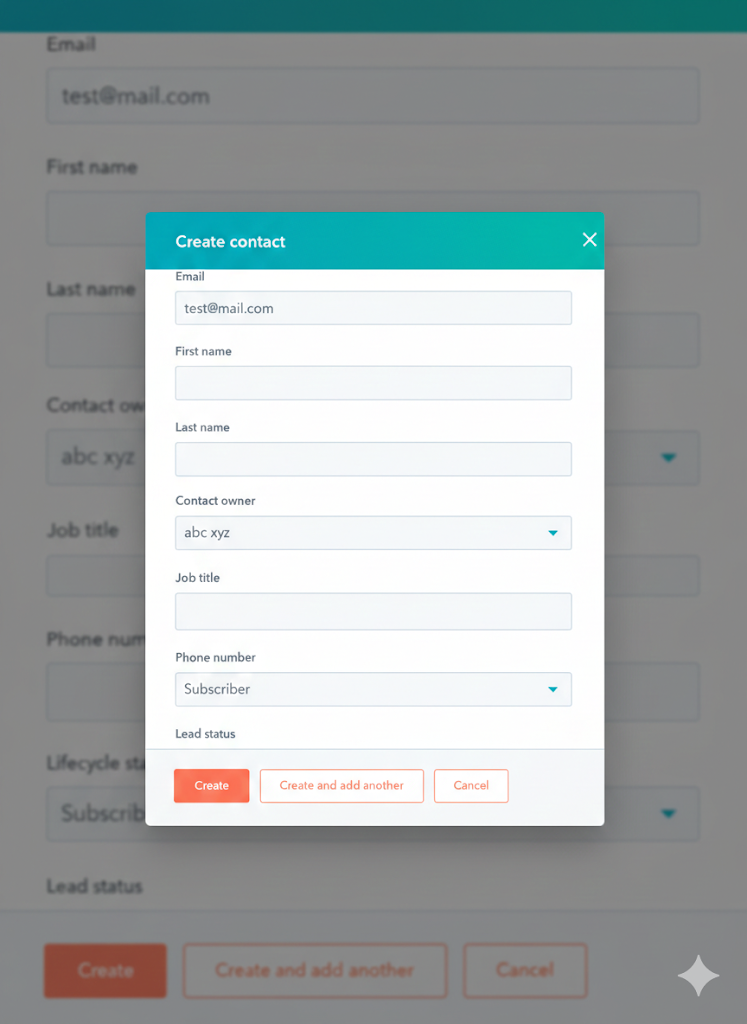
- Create a contact form, which will be open, then enter a value in the fields and click on the “create” or “create and add other” button.

Import HubSpot Contact into ICTContact Modern Contact Center Software:
- Log in to your ICTContact Panel.
- Navigate to Contacts → Contact Groups from the main menu.
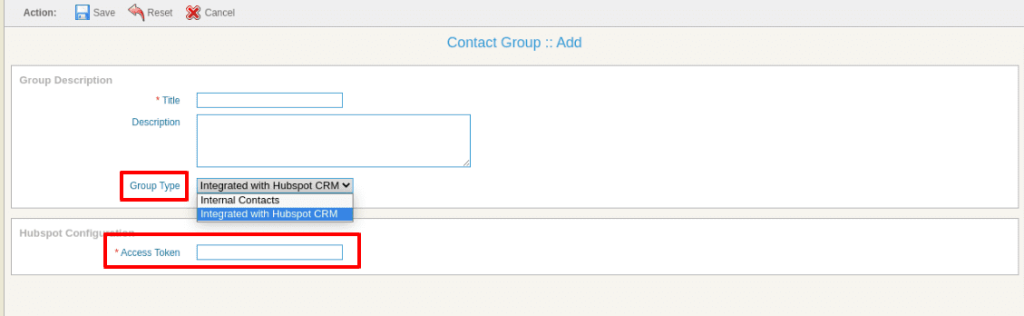
- Click the Add New button to open the Add Contact Group form.
- In the Group Type dropdown, select Integrated with HubSpot CRM.
- Paste your HubSpot Access Token into the Access Token textbox.
- Complete any additional required fields and click Save to create the contact group.
Synchronization of Hubspot Disposition with ICTContact:
- Log in to your ICTContact Panel.
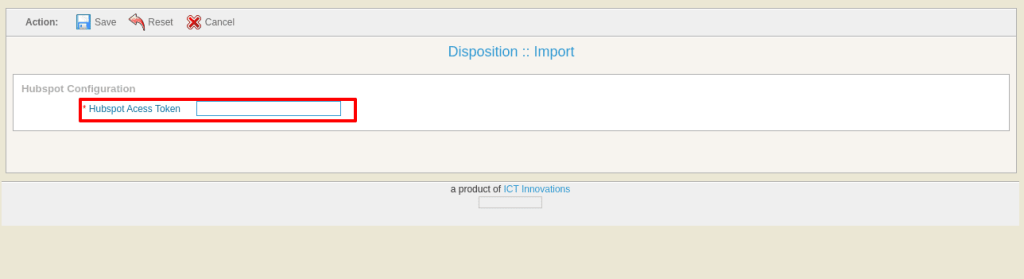
- Navigate to Message → Disposition from the main menu.
- Click the Import button to open the import form.
- Enter your HubSpot Access Token in the designated field.
- Click Save to import the dispositions from HubSpot.
- After a call is completed, the agent can select a Disposition from the Agent Panel.
- The selected disposition is automatically mapped with HubSpot, and a new call engagement is created successfully.
- You can view the engagement directly from the HubSpot GUI.
- To access call recordings and details in ICTContact:
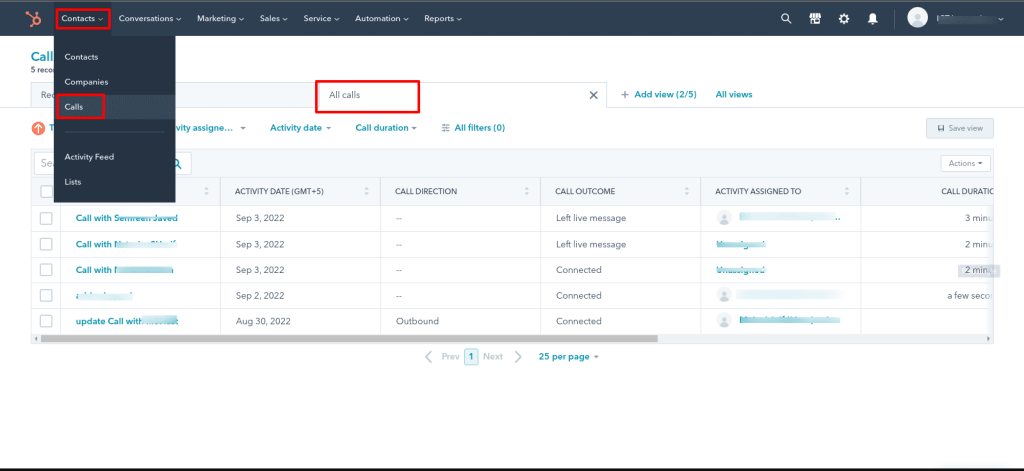
- Navigate to Contacts → Calls from the main menu.
- All call recordings and related data will be displayed.
How To Get Hubspot Access Tokens:
- Log in to your HubSpot account.
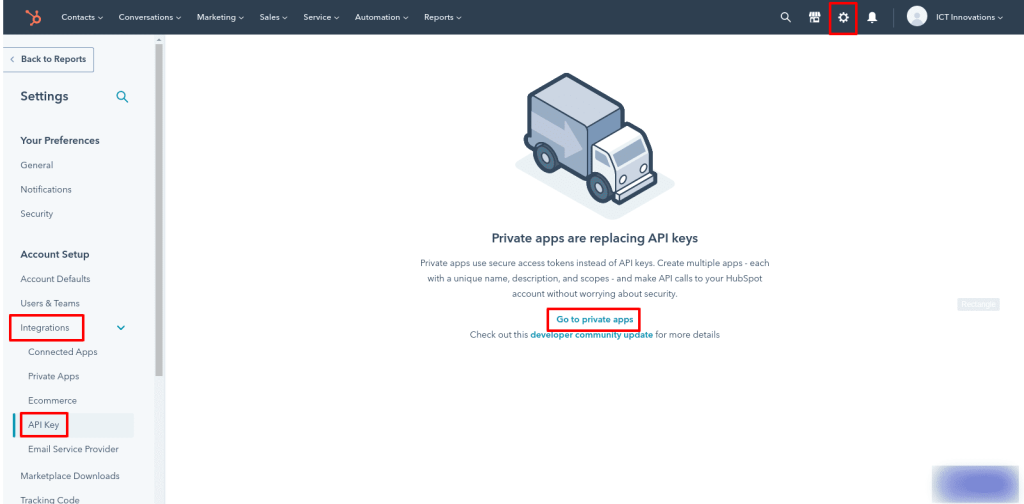
- Click on Settings from the top-right corner of the dashboard.
- From the Integrations section, select API Key.
- Click on Go to Private Apps to view or create your access token.
- If you have already created a private app:
- Click View Access Token and copy your access token.
- If you have not created a private app:
- Click the Create a Private App button.
- Follow the prompts to create the app and generate your access token.
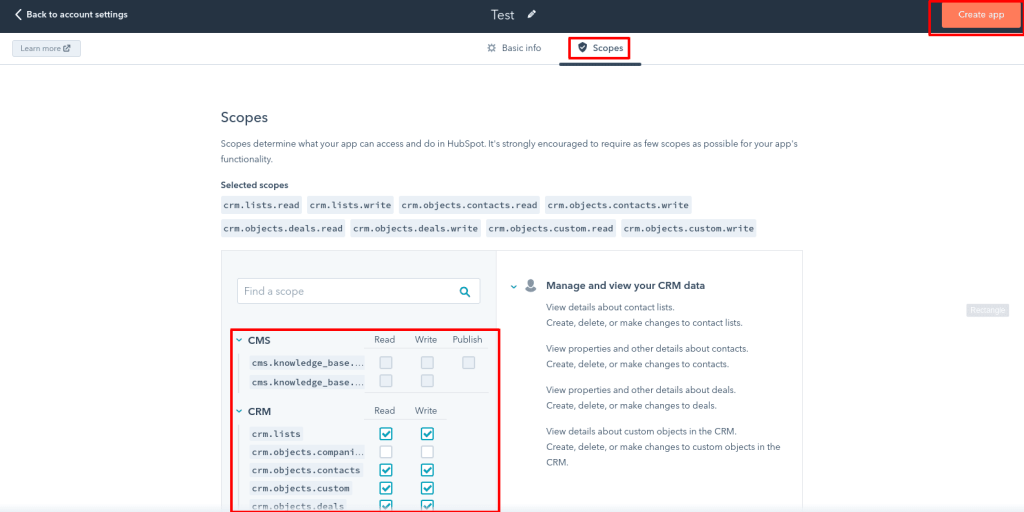
- Enter an App Name and App Description.
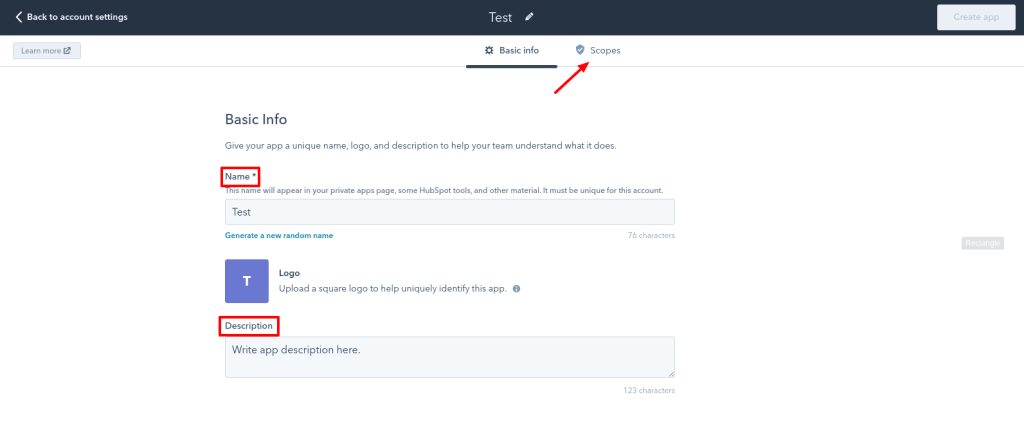
- Select the App Scope according to your integration requirements.
- Click the Create App button.
- After the app is created, click View Access Token and copy your access token.