
AI Voice Agent Guide
An AI persona is a voice agent that talks with a caller in natural speech. It listens and answers, and it can transfer the call, book a callback, mark the number as do not call, record a disposition or send an SMS. You write its instructions as text, pick the speech and language models, and then drop an AI Voice Agent node into an IVR. Open the page from Contact Center > Messages > AI Voice Agent.
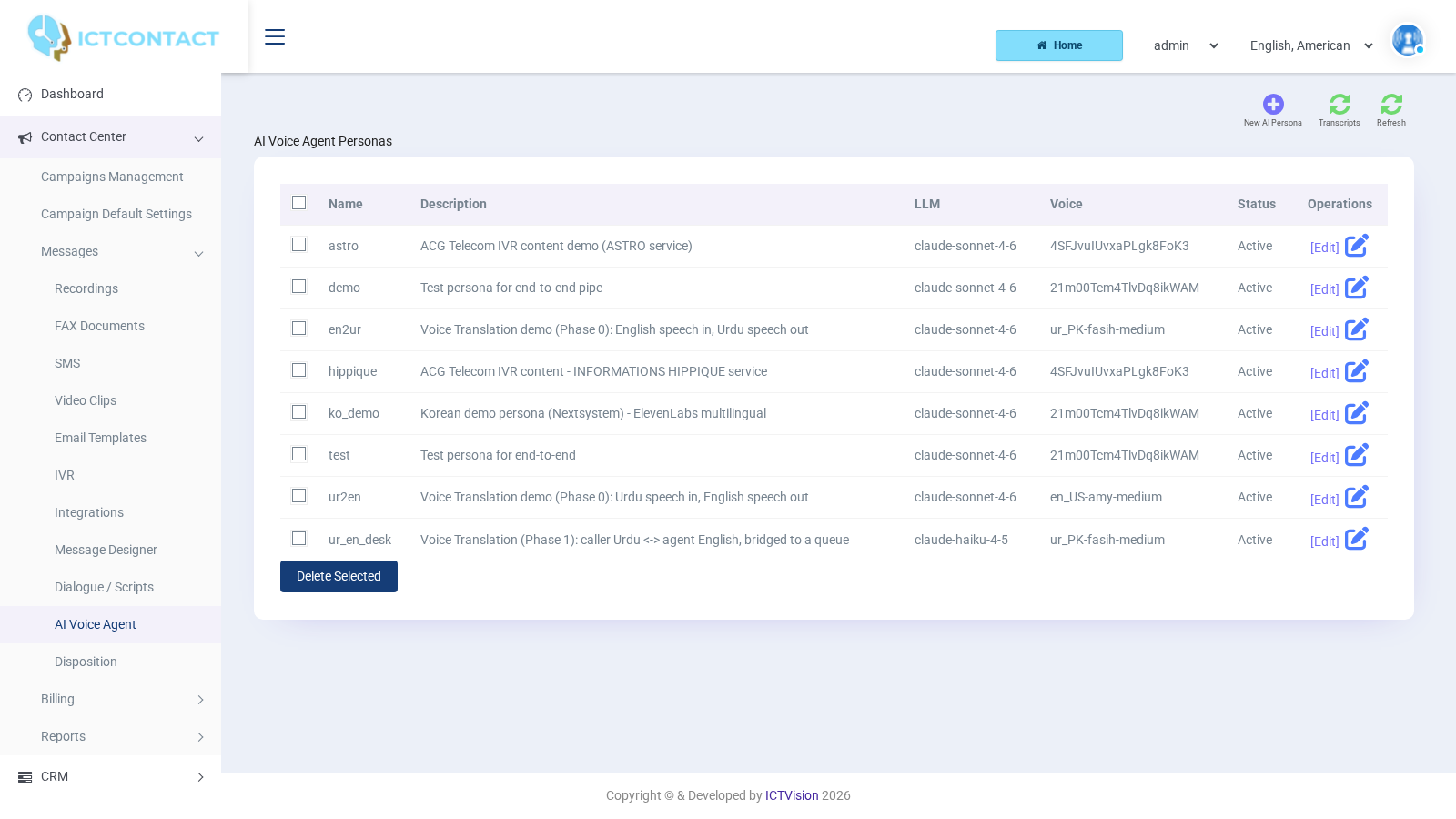
The persona list shows Name, Description, LLM, Voice, Status and Operations ([Edit]). The top buttons are New AI Persona, Transcripts and Refresh. Delete Selected sits under the table.
## Creating a persona
Click New AI Persona. The form is split into sections.
Persona
- Name: an internal name, using lowercase letters, digits and underscore only (checked when you save). It's the name you'll pick in the IVR node, so keep it short, for example sales_callback.
- Description: free text for the list.
- Active: Active or Disabled. Only active personas show up in the IVR node dropdown.
Behaviour
- Opening Greeting: the first sentence the agent speaks, as plain text. It's synthesised when the call starts.
- System Prompt (required): the full instruction to the language model. Role, goal, what it may and may not do, when to transfer. The tokens [contact:first_name], [contact:last_name], [contact:phone], [contact:email] and [campaign:name] are replaced with the contact and campaign of the call. On an inbound call with no contact record they're blanked and the sentence is tidied up.
- Enabled Tools: a comma separated list of the tools the agent may call. Default: transfer, schedule_callback, mark_dnc, write_disposition. You'll find the full list in the next section.
- Transfer Queue: the queue the transfer tool sends the caller to, for example ib_queue_12 (the queue of your agent campaign). If you leave it empty, the agent can't transfer.
Language Model
- Provider: Anthropic (Claude) or OpenAI (GPT).
- Model: you type it in, for example claude-sonnet-4-6 or gpt-4o-mini. Default claude-sonnet-4-6.
- Temperature: 0.0 to 2.0, default 0.40. The hint on screen says voice agents usually sit at 0.3 to 0.5. Go higher and the agent starts to wander.
Speech-to-Text
- Provider: OpenAI Whisper or ElevenLabs Scribe.
- Model: whisper-1 for Whisper, scribe_v1 for ElevenLabs.
- Language: a BCP-47 code such as en-US, ur, es-MX. Default en-US. Set it to the real language of your callers. Recognition gets noticeably better.
Text-to-Speech
- Provider: Piper (local, free) or ElevenLabs (cloud).
- Voice ID: for Piper, the voice file basename (default en_US-amy-medium). For ElevenLabs, the voice_id from your voice library.
- Model: ElevenLabs only, eleven_turbo_v2_5 or eleven_flash_v2_5. Piper ignores it.
A wrong ElevenLabs voice id doesn't produce an error on the call. The server falls back to Piper and the call sounds unchanged. If your persona sounds like the default voice, check the id.
Limits
- Max Call Duration (sec): a hard cap, default 600. The call is hung up when it's reached.
- Silence Timeout (ms): default 8000. After this much silence the agent prompts the caller again.
- Barge-in / Interrupt: Enabled or Disabled, default Enabled. Enabled lets the caller talk over the agent, and the agent stops. Disabled is calmer on noisy lines or speakerphones.
Save, Reset and Cancel are in the top bar.
What each tool does
The agent only calls the tools listed in Enabled Tools, and only when the conversation calls for it. So your system prompt should say when.
| Tool | What happens on the server |
|---|---|
| transfer | A blind transfer of the caller. The target is the Transfer Queue, or the agent can name ext: |
| schedule_callback | Reschedules the campaign call for a future date and time. It only works on an outbound campaign call. On an inbound call it returns an error, and the agent will explain that. The campaign must still be running at that time, and the slot expires 12 hours after it. A Scheduled / Callback entry is written to the contact history. |
| mark_dnc | Adds the caller's number to your DNC list, with the reason the agent gives. |
| write_disposition | Records an outcome. The agent's wording is matched to your disposition names (Sale, Interested, Not-interested, Invalid number, Scheduled / Callback, plus your own). If it matches, the contact's disposition and history are updated and the result shows in the Disposition Report. If nothing matches, the outcome is only kept on the AI session. |
| crm_lookup | Reads the local contact record (name, email, phone, address, custom fields), the last three dispositions, and whether a CRM record is linked. That's what lets the agent say "I see you spoke to us last week". |
| crm_update | Changes one field on the local contact: first_name, last_name, email, phone, address, role, stage, custom1, custom2 or custom3. Email and phone values are validated, and the agent is told to ask again if they look wrong. On this version it doesn't write to the external CRM. |
| send_sms | Queues a text to the caller through your most recent active SMS campaign. If there's no active SMS campaign it fails, and the agent is told so. |
| ivr_navigate | Reads menus from an external content platform. It only works when the administrator has configured that platform. Otherwise, leave it out. |
Putting a persona on calls
The persona runs inside an IVR, so the steps are the same as for any IVR.
- Go to Contact Center > Messages > IVR and click New IVR. Drag Call Answer, then the AI Voice Agent tile. Click its pencil and set Persona (a dropdown of your active personas) and Max Call Seconds (default 600, the node's own cap on top of the persona's). Click Apply. Link Call Started to Call Answer to AI Voice Agent. Link the node's output to Call Hangup, for when the conversation ends without a transfer. Click Save.
- Outbound: go to Contact Center > Campaigns Management and click Add new. Choose either the AI Voice Agent card (same form as an Interactive Campaign, with a notice at the top showing how many personas you have) or the IVR Campaign card, and pick that IVR. Start the campaign. Each answered call is handed to the persona.
- Inbound: create an IVR Campaign with that IVR, set Contact List Closure to Wait Inbound and start it. Then forward the DID to the campaign (DID Forwarding, Usage = Forward to Campaign). The IVR Builder Guide has the full inbound procedure.
Transcripts
Click Transcripts on the persona page. AI Call Transcripts lists every AI call: Started, Persona, Direction, Caller, Duration, Turns, Disposition, Status and a [View] link. Status moves through starting, active, transferring, and ends as ended or error.
[View] opens the call. At the top is a header with Session ID, Persona, Direction, Started, Ended, Duration, Turns, Status, Disposition, Caller and, if something broke, Error. Below that you get the conversation turn by turn, with the caller on the left and AI Agent on the right. Every tool call shows in between, with its arguments and result, and ERROR is marked when the tool failed. When a customer says "the bot did something odd", look here first.
Writing a system prompt that works on the phone
A phone call isn't a chat. Here are a few rules we've found hold up:
- One sentence per idea, and tell the model so: "Keep every reply under two sentences. Never read lists." Long replies get interrupted and sound robotic.
- Give it a name, a company and a single goal. "You are Sara from Northline Clinic. Your only goal is to confirm or move the appointment."
- Spell out the exits. Say when to call transfer ("if the caller asks for a human, or asks anything about billing"), when to call schedule_callback, and when to call mark_dnc ("if they ask not to be called again, apologise, call mark_dnc, and end"). The tools are only used when the prompt says so.
- Tell it what it doesn't know. "You cannot see prices. If asked, offer a transfer." Otherwise it'll guess.
- Use the tokens. "The caller is [contact:first_name]" saves a question.
- Numbers and dates: have the agent ask the caller to repeat them and read them back before it calls crm_update or schedule_callback. Speech recognition on digits is the weakest link.
- Keep markdown, bullet points and emoji out of the prompt's example phrases. They're stripped before synthesis, but the model copies the style.
Testing before go-live
- Make a contact group with two or three of your own numbers, and a short IVR campaign on it: Conclude Campaign mode, Max. Concurrent Channels 1.
- Call yourself. Use a handset or headset, not a speakerphone. Echo on a speakerphone triggers Barge-in / Interrupt on the agent's own voice, and it keeps stopping mid sentence. If most of your callers will be on speakerphones, test with Barge-in / Interrupt set to Disabled.
- Try the exits. Ask for a human, ask for a callback tomorrow at ten, say "stop calling me". Then open Transcripts and check that each tool call shows a result and not ERROR.
- Check Reports > Disposition Report for the write_disposition outcomes, and CRM > Customer > Contacts for the crm_update changes.
- Check the cost side. Max Call Duration (sec) caps a runaway conversation, and the Temperature and Model fields are where you trade quality against speed.
Only then point the real contact group at it. Keep Max. Concurrent Channels low for the first run.