CRM Integrations Guide
ICTContact connects with major CRM platforms so your agents never have to switch between systems. Call data, dispositions, and contact updates sync automatically between ICTContact and your CRM in real time.
Supported Integration Types
| Type | Use Case |
|---|---|
| Callback Queue | Push inbound call data to your CRM when a call enters the queue |
| HTTP (REST) | Sync contacts with any CRM that has a REST API (Salesforce, HubSpot, custom) |
| SOAP / WSDL | Connect to legacy enterprise systems using SOAP protocol |
| SMS Gateway | Route outbound SMS through an external SMS provider |
Supported CRM Platforms
- Salesforce CRM Integration
- HubSpot CRM Integration
- SuiteCRM Integration
- Vtiger CRM Integration
- YetiForce CRM Integration
- EspoCRM (via REST API)
- Any CRM with REST or SOAP API support
Setting Up a New Integration
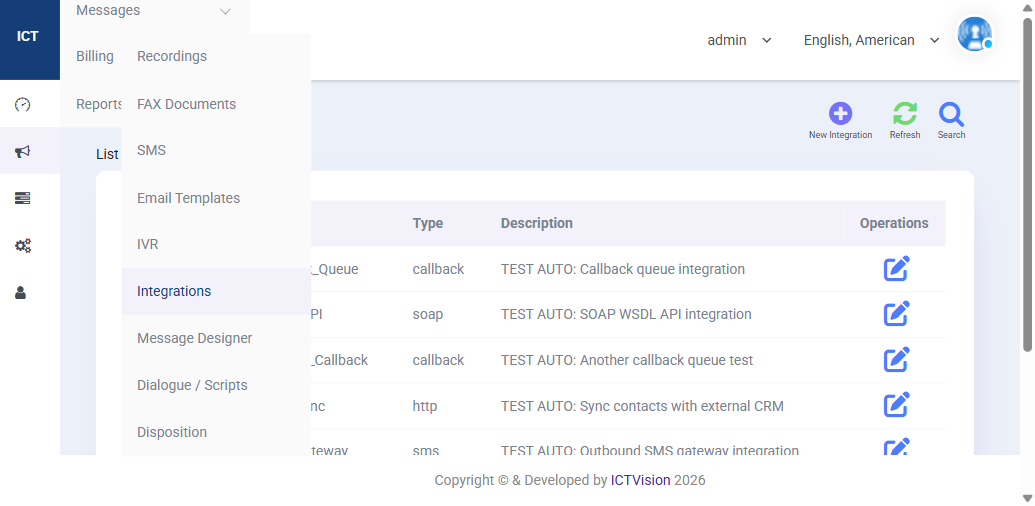
- Go to Messages > Integrations
- Click New Integration
- Enter a name and select the integration type (callback, HTTP, SOAP, SMS)
- Fill in the endpoint URL for your CRM’s API
- For HTTP integrations, enter the field mappings (ICTContact field → CRM field)
- Set the trigger event: on call answer, on disposition, on campaign end
- Save and test using the test button
What Data Gets Synced
- Contact name, phone, email
- Call disposition (Interested, Converted, Not Interested, etc.)
- Call duration and timestamp
- Agent who handled the call
- Campaign name
- Call notes entered by the agent
Troubleshooting Integration Failures
- Check that the CRM API endpoint URL is correct and publicly accessible
- Verify API key or OAuth token has not expired
- Check the CRM’s API rate limits — ICTContact may be sending too many requests during high-volume campaigns
- Use the integration’s Edit screen to view the last sync status and error message
Open source pieces you can use today
Three of the integrations on this page have open source counterparts. The n8n community node lets you start, stop and monitor campaigns from an n8n workflow, so a CRM event can trigger a call without anyone writing code. ICTAgent is the Chrome extension that turns the browser into the agent’s phone, with click to call from any page. And because ICTContact ships an AI voice agent, we also publish tvbench, the tool we use to measure what a caller actually hears from it. The AI voice agent guide covers the setup side.
Related: Disposition Management Guide | CRM Contact Center Software | Full User Guide