
Supervisor Panel Guide
The Supervisor role sits between Admin and Agent. Supervisors can monitor live calls, coach agents, view real-time statistics, and manage campaigns — but they can’t change system configuration or billing settings. This makes the Supervisor login ideal for team leads and floor managers.
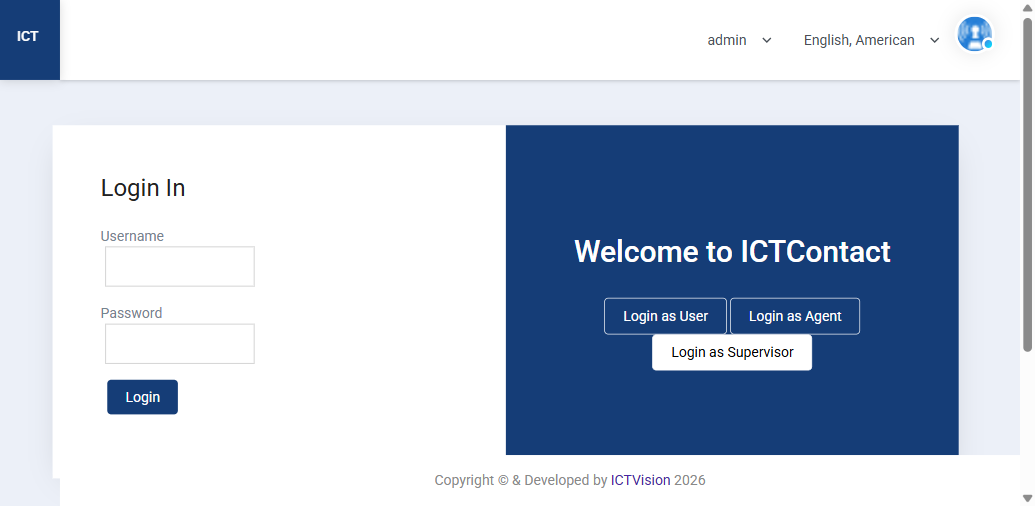
How to Log In as Supervisor
- Go to your ICTContact URL (e.g. https://dialer.ictvision.net)
- Click Login as Supervisor
- Enter your supervisor username and password
- Click Login
Supervisor accounts are created by the Admin under User Management. Ask your administrator to create your account and assign the Supervisor role.
What Supervisors Can Do
| Feature | Supervisor Access |
|---|---|
| Dashboard — live stats | Full view |
| Live Agent Statistics | Full view + can force-logout agents |
| Campaign Management | View and start/stop campaigns |
| Reports (CDR, Agent Stats, Disposition) | Full access |
| Call Recording playback | Full access |
| Contact & Lead management | View and edit |
| Agent Evaluation | Create and submit evaluations |
| Gateways / Trunks | No access |
| Billing & Rate Plans | No access |
| System Configuration | No access |
| User Management | No access |
Monitoring Agents in Real Time
After logging in, the Supervisor dashboard shows the same real-time widgets as the Admin dashboard. The key tools for supervisors are:
- Live Agent Statistics — see every agent’s current status (Free, On Call, On Break), talk time, and occupancy. Click the force-logout icon to disconnect an agent if needed.
- Agent Status Overview — total agents, online, on break, in call, and free counts at a glance.
- Recent Calls History — last calls with contact, agent, disposition, and notes.
Managing Campaigns as Supervisor
Supervisors can start, pause, and stop campaigns without needing Admin access. Go to Campaigns Management, find the campaign, and use the action buttons to control it. This is useful when a supervisor needs to pause a campaign due to unexpected volume or quality issues.
Agent Evaluation
Supervisors can evaluate agent call quality. Go to the Agent Evaluation section (covered in the main user guide), select a call recording, and score the agent against your evaluation form criteria. Completed evaluations are visible to both the supervisor and the agent.
Creating a Supervisor Account (Admin Only)
- Go to User Management
- Click Add New User
- Fill in name, email, username, password
- Set Role to Supervisor
- Save
The new supervisor can now log in at yoursite.com/login.php?action=supervisor.
Related: Reports Guide | User Management | Agent Evaluation Guide | Full User Guide