ICTContact seamlessly integrates with Vtiger CRM to unify customer data, call handling, and agent workflows in one platform. This integration empowers contact centers with real-time CRM synchronization, intelligent call routing, and improved customer engagement through advanced contact center capabilities.
The integration enables users to communicate directly with their contacts and customers from within Vtiger CRM, whether through contact lists, lead lists, opportunity lists, or other CRM modules. It also automates key business processes by allowing users to add contacts and leads directly into selected ICTContact campaigns, streamlining outreach and improving operational efficiency.
CRM Integration with ICTContact Advanced Contact Center Software:
The integration leverages REST APIs to automate business processes, allowing users to seamlessly add contacts and leads directly from Vtiger CRM into selected campaigns.
How to integrate with ICTContact:
Log in to the CRM panel, go to Settings → CRM Settings, add the required ICTContact information, then navigate to User Management → Users → Add User to create users for the integration.
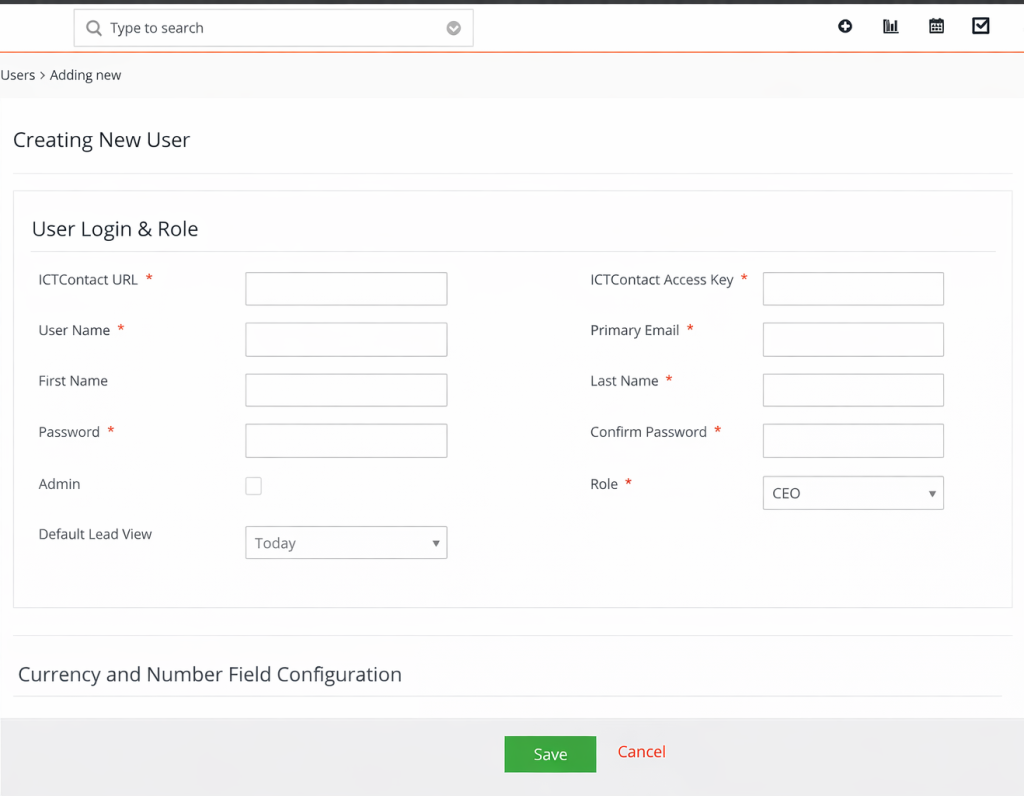
Enter your ICTContact URL and ICTContact Access Key in the respective fields, fill in the remaining user information, and click the Save button to complete the configuration.
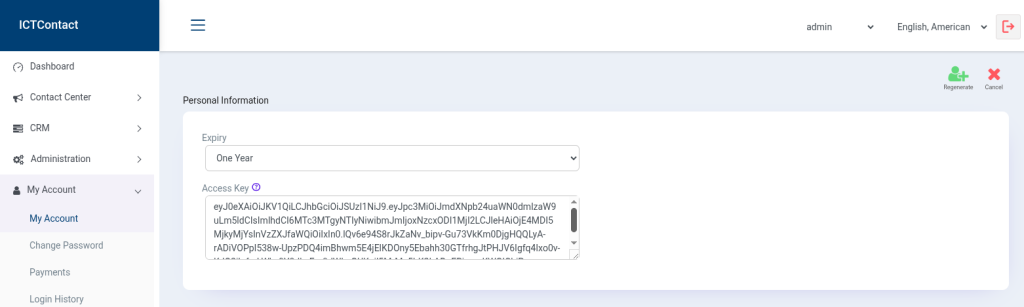
How to get ICTContact Access Key:
In ICTContact, log in and go to My Account → Access Key. Here, you can view your current access key, and if needed, generate a new one by clicking the Regenerate button. Remember, regenerating will deactivate the old key, so update any integration using it.
Export Contact / Leads
There will be an option in CRM to search or Filter contacts/leads, and then export the selected leads to the targeted campaign in ICTContact.
NOTE: In the target campaign, only those campaigns that display a status of active and Contact List Closure is Wait Contact (API).
Export Leads:
To export leads in ICTContact, navigate to Menu → Marketing → Leads. Here, you can search or filter the leads you want to export
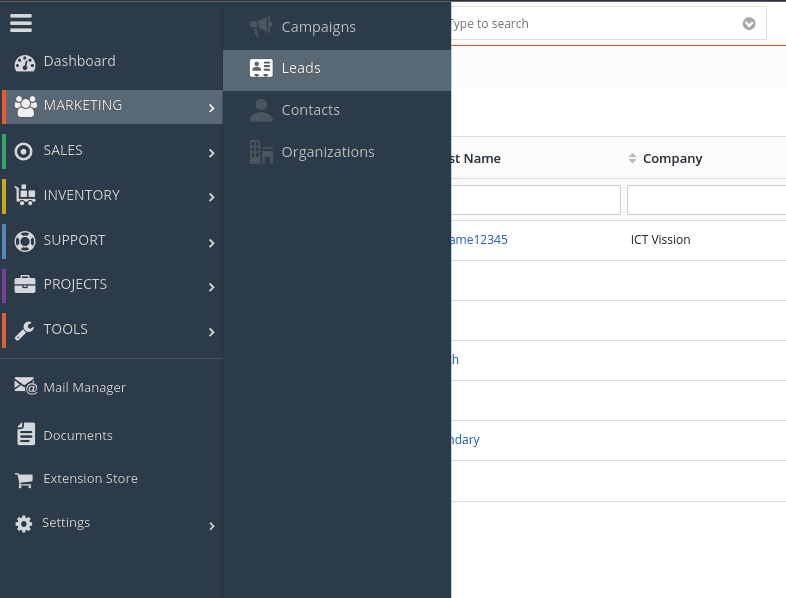
Then select the lead that you want to add in targeted campaign in ICTContact. And select export from the More Dropdown Button.
Then a dialog box opens. Select the campaign, export data, and click on the Export Leads Button, then selected leads export in the selected campaign.
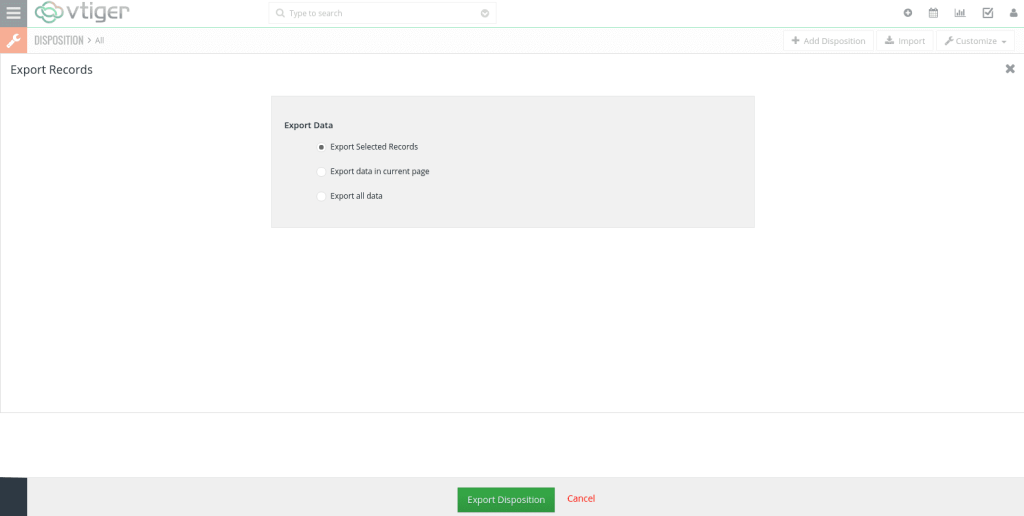
Export Contact:
To export contacts in ICTContact, navigate to Menu → Marketing → Leads. Here, you can search or filter the contacts you want to export
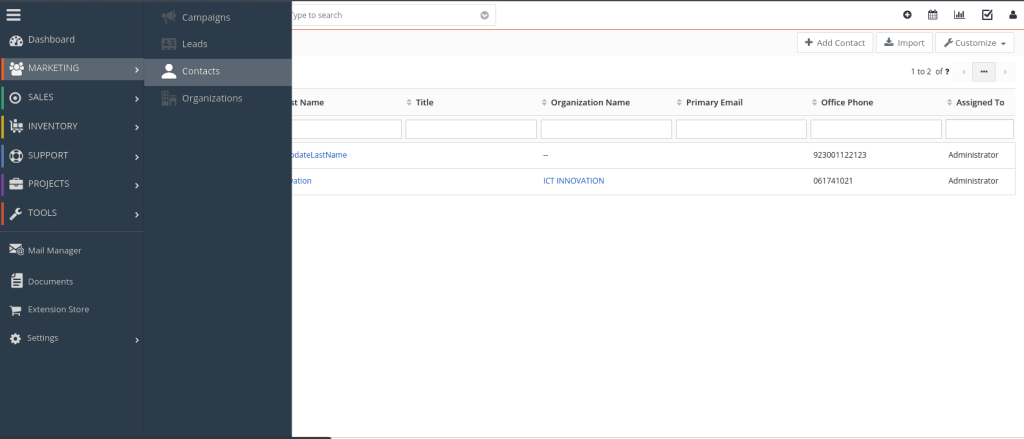
Then select the contacts that you want to add in targeted campaign in ICTContact. And select export from the More drop down Button.
After selecting the leads, a dialog box will open. In this dialog, choose the target campaign and click the Export Contacts button. The selected leads will then be exported to the chosen campaign in ICTContact.
Do Not Call List:
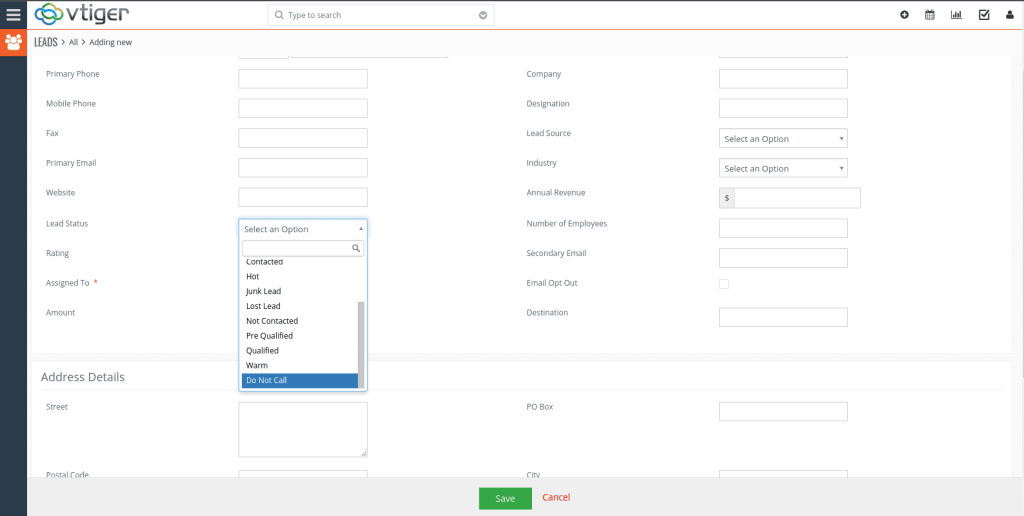
In Vtiger, users have the option to set a lead’s status to DoNotCall while creating a new lead. To do this, navigate to Menu → Marketing → Leads → Add Lead. A form will open where you can enter the lead details and select Do Not Call as the lead status before saving.
Then select Do Not Call option from the Lead Status drop-down. And add firstname, lastname, phone number, and other information in the fields and click on the save button.
Delete Synchronization:
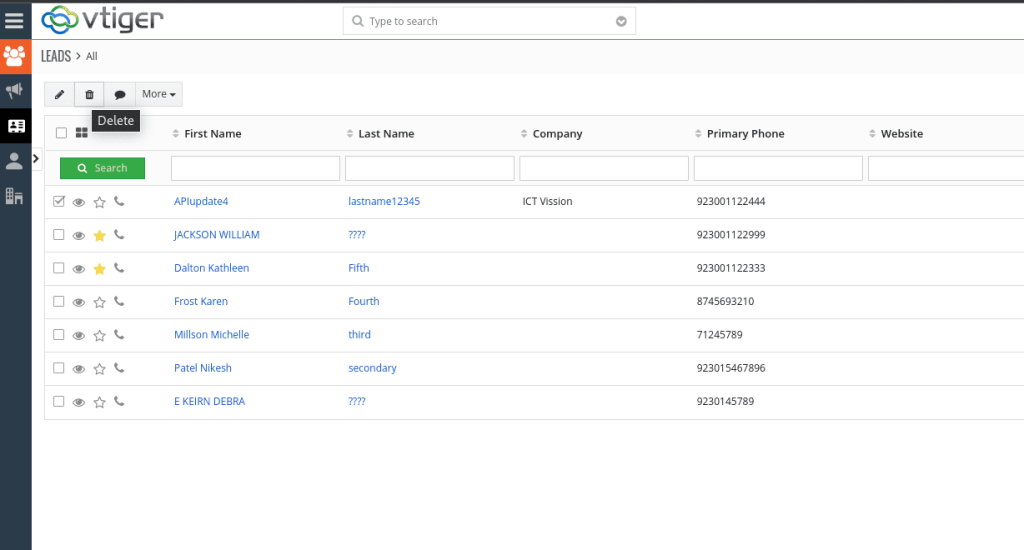
The integration supports Delete Synchronization, which ensures that records removed from the CRM are automatically deleted from the ICTContact dialing list before any call is triggered. This means if a record is deleted in the CRM, it will be removed from the dialing list immediately and will not be called.
Disposition Management:
In ICTContact, Disposition Management allows administrators to manage call outcomes efficiently. ICTContact provides a GUI where the admin can create, edit, or delete dispositions. Similarly, in the CRM, admins can create dispositions and export the CRM disposition list directly into ICTContact for seamless integration.
Export Disposition:
To export dispositions from the CRM to ICTContact, navigate to Menu → Tools → Disposition → More → Export. Here, you can select the dispositions you want to export, and the system will transfer the CRM disposition list to ICTContact, ensuring that all call outcomes are synchronized between the platforms.
Combined Report:
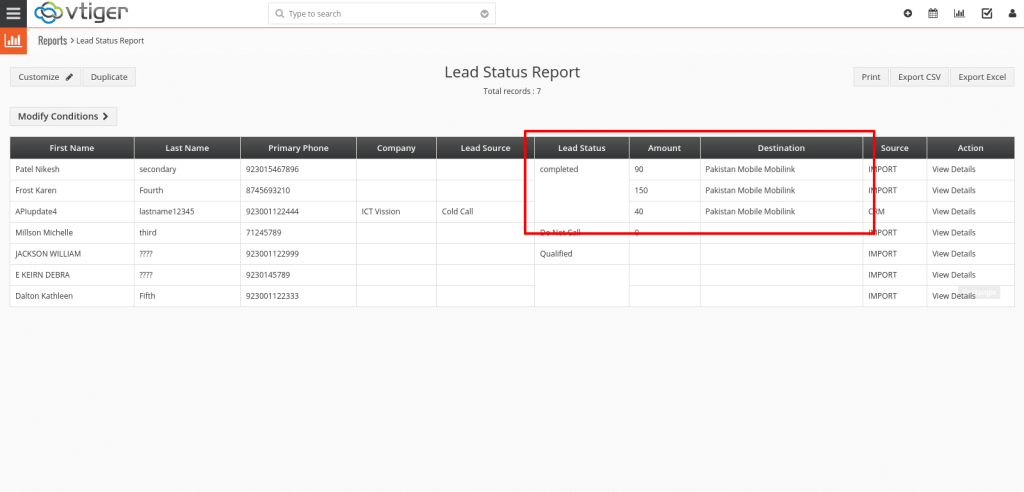
VtigerCRM allows you to see reports, for example, this month’s activities, last month’s activities, contacts by accounts, etc. These reports must contain a lead status report that comes from the contact center, such as call status, total amount, destination, etc. Admin can check the report. Click on the report button that appears in the top right corner.
Click on Reports => Lead Status Report, and then the lead status is displayed.
Add Vtiger Integration in ICTContact:
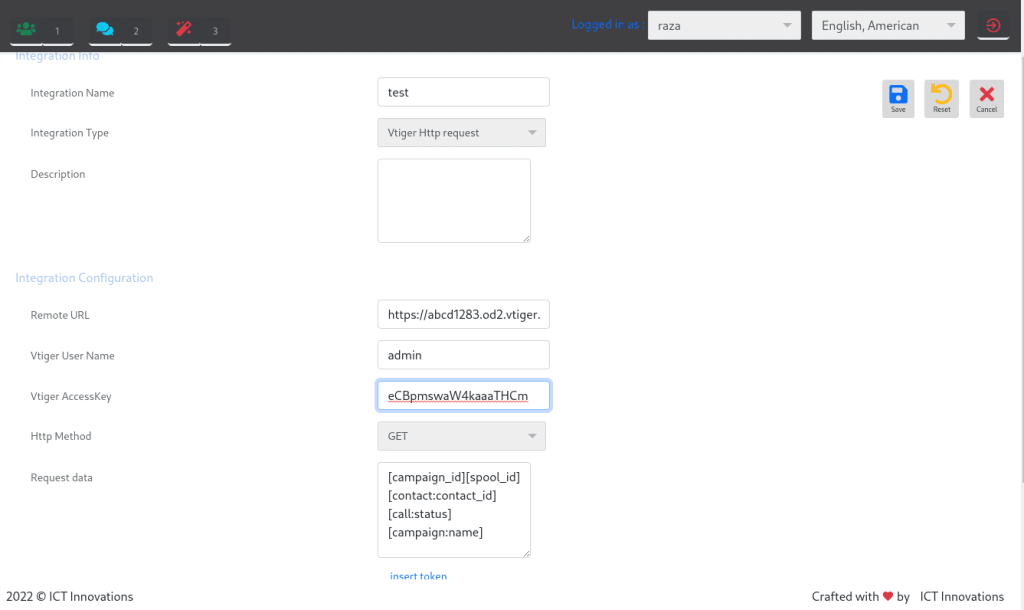
- Navigate to Message → Integration → Add Integration.
- Select Vtiger HTTP Request from the Integration Type dropdown.
- Enter the Vtiger URL in the Remote URL field.
- Add the Vtiger username and Vtiger access key (obtainable from Settings → Manage User → User Advanced Options).
- Insert the required tokens in the Request Data field, such as:
campaign_idspool_idcontact:contact_idcall:statuscampaign:name
- Click Save to complete the integration setup.
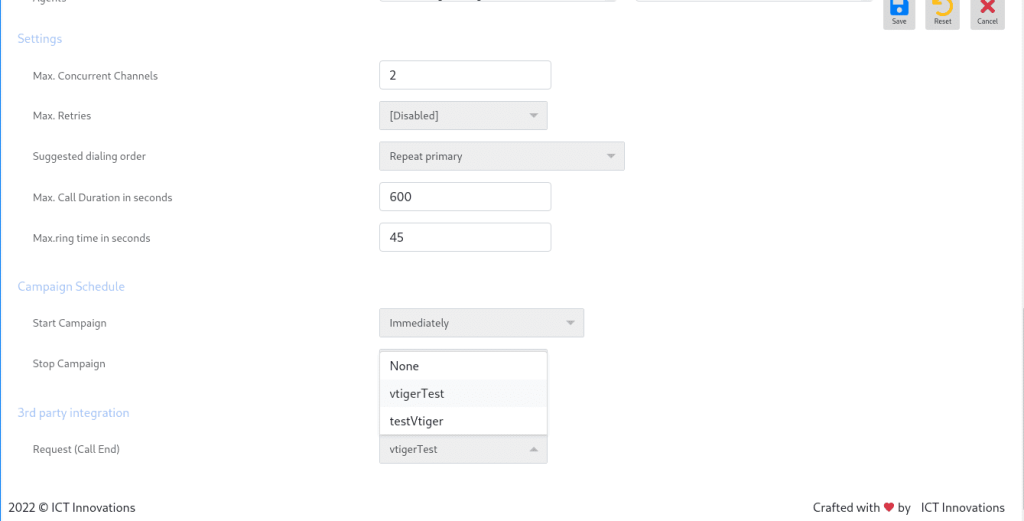
Select the created integration in the 3rd party integration block during campaign creation.