
Disposition Management Guide
Dispositions are the outcome codes agents select after every call — Interested, Not Interested, Converted, Wrong Number, and so on. Setting up the right dispositions is critical for accurate reporting, CRM sync, and campaign analytics.
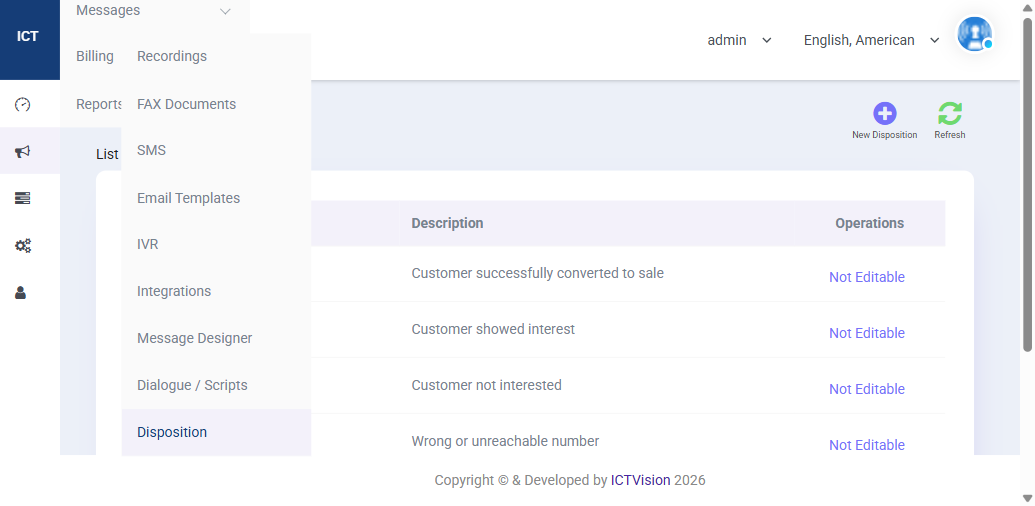
Default Dispositions
ICTContact comes with these built-in dispositions (marked “Not Editable”):
| Disposition | Description |
|---|---|
| Converted | Customer successfully converted to sale |
| Interested | Customer showed interest |
| Not Interested | Customer not interested |
| Wrong Number | Wrong or unreachable number |
These system dispositions can’t be deleted, but you can add your own custom ones alongside them.
Creating a Custom Disposition
- Go to Messages > Disposition
- Click New Disposition
- Enter a name (e.g., “Callback Requested”, “Voicemail Left”, “DNC Request”)
- Add a description so agents understand when to use it
- Save
Recommended Custom Dispositions to Add
- Callback Requested — customer asked for a callback at a specific time
- Voicemail Left — agent left a voicemail message
- No Answer — rang but no pickup, no voicemail left
- Busy — line was busy
- DNC Request — customer asked to be removed from calling list (add to DNC automatically)
- Already a Customer — prospect is an existing customer
- Send Info — customer wants information sent by email
Dispositions and CRM Sync
When you set up a CRM integration, you can map each disposition to a CRM status or stage. For example: Converted in ICTContact → Closed Won in Salesforce. Configure this in Messages > Integrations under field mappings.
Viewing Disposition Reports
Go to Reports > Disposition Report to see how many calls ended in each disposition per campaign. This tells you your conversion rate, callback rate, and DNC rate at a glance.
Related: Reports Guide | CRM Integrations Guide | Full User Guide