
Quick Start Guide: Launch Your First Campaign in 10 Minutes
When you finish this page you'll have five things: a trunk that can carry calls, a route that tells the dialer to use it, one recording, one contact group, and a running Message Campaign that plays the recording to everyone in the group. We'll go through the screens in the order the dialer needs them. Log in with the Login as User button using the admin account. A client account can do everything from step 3 onward, as long as the admin has already set up the trunk and route.
1. Add a trunk (Administration > Gateways)
A trunk is your VoIP provider. Click New Trunk. The form is split into fieldsets:
| Fieldset | Fields |
|---|---|
| Trunk | Trunk Name, Type (Outbound, Inbound, Outbound and Inbound), Status (Active, Disabled), Weight (-10 to 10) |
| Technical Informations | Gateway Type (Asterisk, Kannel, SwiftMailer, Http, Twilio), service checkboxes Voice, Fax, SMS, Email, Video |
| Outbound Configurations | CPS Limit (new calls per second), Max. Channel Capacity (concurrent calls), Dial Prefix |
| CallerID / From Address | CallerID Format, Default CallerID, CallerID Title Format, Default CallerID Name |
| Trunk Configuration | Protocol Type (SIP), Register String, Settings, Dial String |
For a normal SIP provider:
- Pick Gateway Type Asterisk and tick Voice.
- Set CPS Limit and Max. Channel Capacity to what your provider allows. For a test we usually start with 1 and 5.
- Paste the provider's peer settings into Settings.
- Use the Dial String
PJSIP/%phone@%trunk. - Leave Register String empty unless the provider told you to register.
- Save.
Two things catch people out here. First, the Status column in the trunk list only shows Active or Disabled. It doesn't tell you whether the trunk is registered or reachable. You check that in Asterisk with asterisk -rx "pjsip show registrations" or pjsip show endpoints. Second, a trunk on its own is never used. The dialer picks a trunk through a route, and that's the next step.
Each trunk row also has two links. [Test] lets you choose a Service, a recording and a Contact number to place one test call. [Assign] sets who can use it (Assigned to: [System], Available to clients, Available to plans).
2. Add a route (Contact Center > Billing > Routes)
Click New Route and fill in:
- Services (Voice).
- Trunk. Only outbound trunks that carry the chosen service are listed.
- Destinations: Region, Country and a Destination list where you select one or many prefixes.
Save.
Here's how the dialer uses it. It matches a phone number to the longest destination prefix that has a route, then picks a trunk from that route. If several trunks serve the same destination, it tries the one with the lowest Weight and free channels first. The route itself has no priority field.
Don't skip this step. Without a route the campaign still starts, but every call fails, because the dialer has no trunk to send it to. If you've got a lot of routes, bulk load them with the Import button (sample file route_sample.csv, one line per destination: prefix, name).
3. Add a recording (Contact Center > Messages > Recordings)
Click New Recording. The fields are Recording Name, Description and Recording Source. Recording Name takes letters, digits, dot, dash and underscore only, with no spaces.
Recording Source has two options:
- Recording File: you upload a file under File Name.
- Text: you type into Text to Recording and the server generates the audio.
Whatever you upload gets converted to 8 kHz mono WAV, so a WAV file is the safe choice. The list shows Recording Name, Length, Type, Description and Operations. From Operations you can play or download the converted file.
4. Add a contact group (CRM > Customer > Contact Groups)
Click Add new. Fill in Title, Description and Group Type. Leave Group Type on Internal Contacts. The other entries in that list pull contacts from a CRM and need that CRM's credentials: Agile CRM, ActiveCampaign, Apptivo CRM, Capsule CRM, Close CRM, Copper CRM, Creatio CRM, Dynamics 365, Freshsales, Keap (Infusionsoft), Less Annoying CRM, Monday.com, Streak CRM, YetiForce CRM, Zendesk Sell, Vtiger CRM, SuiteCRM, Salesforce, Zoho CRM, SugarCRM, Pipedrive.
Under Import Contacts (Optional), choose a Type of Source:
- Upload Contacts via standard file: a CSV in the same order as the Example File Contact_sample.csv. That's phone, first name, last name, email, street address, then up to eight custom columns. Enter phone numbers with the country code and no plus sign, for example 923330000000.
- Upload Contacts via custom file: the same upload, plus CSV Format, Column Separated By, Column Enclosed By and Rows to Skip. Use it for files that don't follow the sample layout.
- Copy Contacts from existing Groups: pick Source Groups.
Fetch CNAM Data can stay on Don't fetch. Save.
The group list shows Group Name, Description, Total Contacts, Total CNAM and Operations. Before you build the campaign, check that Total Contacts is what you expect.
5. Create the campaign (Contact Center > Campaigns Management)
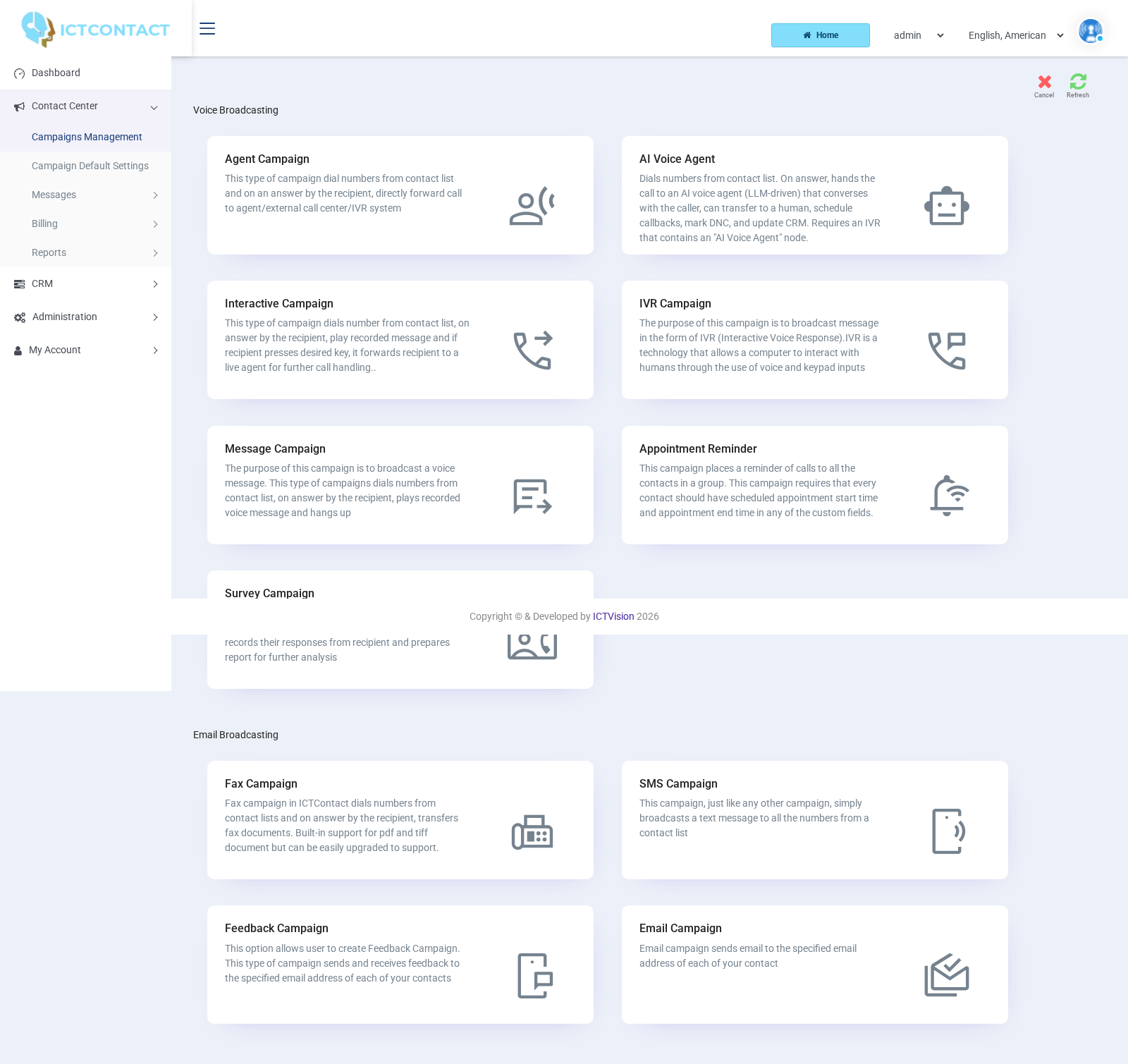
Click Add new. You'll land on the campaign type screen, which has two groups: Voice Broadcasting and Fax SMS, Email, & Video Broadcasting. Click the first Message Campaign card. There are two cards with that title, and the first one is the plain voice broadcast: dial, play the recording, hang up.
A wizard opens with a tab for each step and Previous and Next buttons at the bottom. Save is in the top right.
-
Basic Configuration. Enter a Name. Dialing Mode is a select (Inbound Dialing, Broadcasting, Predictive Dialing, Progressive Dialing, Preview Dialing, Manual Dialing), but for a Message Campaign it's preset to Broadcasting and greyed out. Caller ID Type offers User CallerID, Anonymous CallerID, [custom], Random CallerID List and Sequential CallerID List. Which ones you see depends on the client's caller ID permissions. Then fill in Caller ID and Caller Name. Both have a Show available tokens link if you want to insert contact fields.
-
Contact. Set Source (Lead, Deal, Contact), Contact Type (File or Group) and Contact Group (pick the group from step 4). Then choose the campaign mode:
- Conclude Campaign: stop when the list is done.
- Wait Inbound.
- Wait Contacts (API): stay up and dial contacts pushed through the REST API.
- Repeat Contacts: with a repeat count and a Delay of [No Delay], 5 Minutes, 10 Minutes, 30 Minutes, 1 Hour, 2 Hours or Until next schedule.
For a first run, use Conclude Campaign.
-
Message Campaign Configuration. Set Message Recording to the file from step 3. Introductory Message is [Disabled] or [Enabled], plus a recording to play first. Action on DNC is [Disabled] or [Enabled]. When it's enabled, a key press of 9 removes the number from the list. Action on AMD is [Disabled], Hangup, or Leave Message plus the recording to leave on the machine. Voice Disclaimer appears when disclaimers are switched on for the account.
-
Advance Configuration. On this build the tab is spelt Advacne Configuration. The fields are:
- Max. Concurrent Channels (default 2 on this node, capped by the client's channel limit).
- Max. Retries ([Disabled] or 1 to 5).
- Suggested dialing order (Repeat primary, Repeat primary and secondary, Repeat primary, secondary and tertiary, Repeat from primary to quinary).
- Max. Call Duration in seconds (default 600).
- Max.ring time in seconds (default 45).
There's no schedule on this form. The campaign starts when you click the Start Campaign icon in the list. It stops when the list is done or when you click Stop Campaign. The hours in which it may dial come from the client's resources (Administration > Client Management > Assign / Remove Resources).
Click Save. For your first test, use a group with two or three numbers you can answer yourself, set Max. Concurrent Channels to 1 and leave Max. Retries on [Disabled].
6. Start it and watch
The campaign list shows #, Campaign Name, Type, Progress, Status, Operations and Reports. In Operations, click the start icon (its tooltip is Start Campaign). Status goes from Pending to Active, and Progress fills as contacts are dialed. The same column holds the stop, cancel, edit, copy and conclude icons.
While it runs, here's where to look:
- Dashboard: My Active Campaigns shows Dialed, Answered, Failed, ActiveChannels and ChannelLimit for each running campaign. You also get Increase Limit and Decrease Limit arrows and a View Campaign Details link that lists live calls.
- Reports > CDR: one row per call with Started At, Answered At, Ended At, Ended By, Campaign, Phone, Destinations, Provider (the trunk), Rate, Cost, Status and Response. Filter by Campaign and Date, then Export or Print.
- Reports > Overview: totals per campaign and period (Date / Time, Campaign, Total Calls, Amount, Net Amount, Total Cost). The Reports column in the campaign list also has a [CDR] link and a results link that opens the campaign summary.
If it does not dial
| What you see | Where to look |
|---|---|
| Status stays Pending or flips to Stopped straight away | Check that the campaign daemon is running on the server, then read logs/campaign- |
| Stopped (not enough credit, reserve-credit is: …) | The client has no balance. Add credit under Contact Center > Billing > Payments, or check that the Rate Plan has a rate for the destination. |
| Stopped (by administrator) | The license doesn't allow the campaign to run. |
| Calls appear in CDR with Status failed and no Provider | No route matched the number. Add the prefix under Billing > Routes and confirm the trunk carries Voice. |
| Calls fail and the trunk is the right one | The provider rejected the call. Check asterisk -rx "pjsip show endpoints", the Dial String and any Dial Prefix the provider requires. |
| Contacts never get dialed outside certain hours | The client has an Allowed Time Slot and Allowed Weekdays under Client Management > Assign / Remove Resources. |
| Campaign runs but only one call at a time | It's one of three limits: Max. Concurrent Channels on the campaign, Max. Channel Capacity on the trunk, or Max Allowed Channels on the client. The smallest of the three wins. |